

How to Invite Staff Members (Step-by-Step Guide)
This guide walks you through inviting new team members to your WaanKit workspace, granting them appropriate permissions to manage store branches, Smart Links, QR codes, and analytics.
Prerequisites
- Recipient Email: The email address of the team member you wish to invite.
- First & Last Name: Full name of the invitee.
- Assigned Role: Choose between Manager or Data Analyst.
- Subscription Quota: Ensure your current plan has remaining member seats.
Step-by-Step Invitation Process
Step 1: Navigate to Staff Management
- Log in to the WaanKit Console.
- Select your brand workspace.
- In the sidebar menu, navigate to "Settings" > "Staff List".
Step 2: Open the Invitation Drawer
Click the blue "+ Invite Staff" button in the top-right corner. A 640px side drawer will slide open from the right.
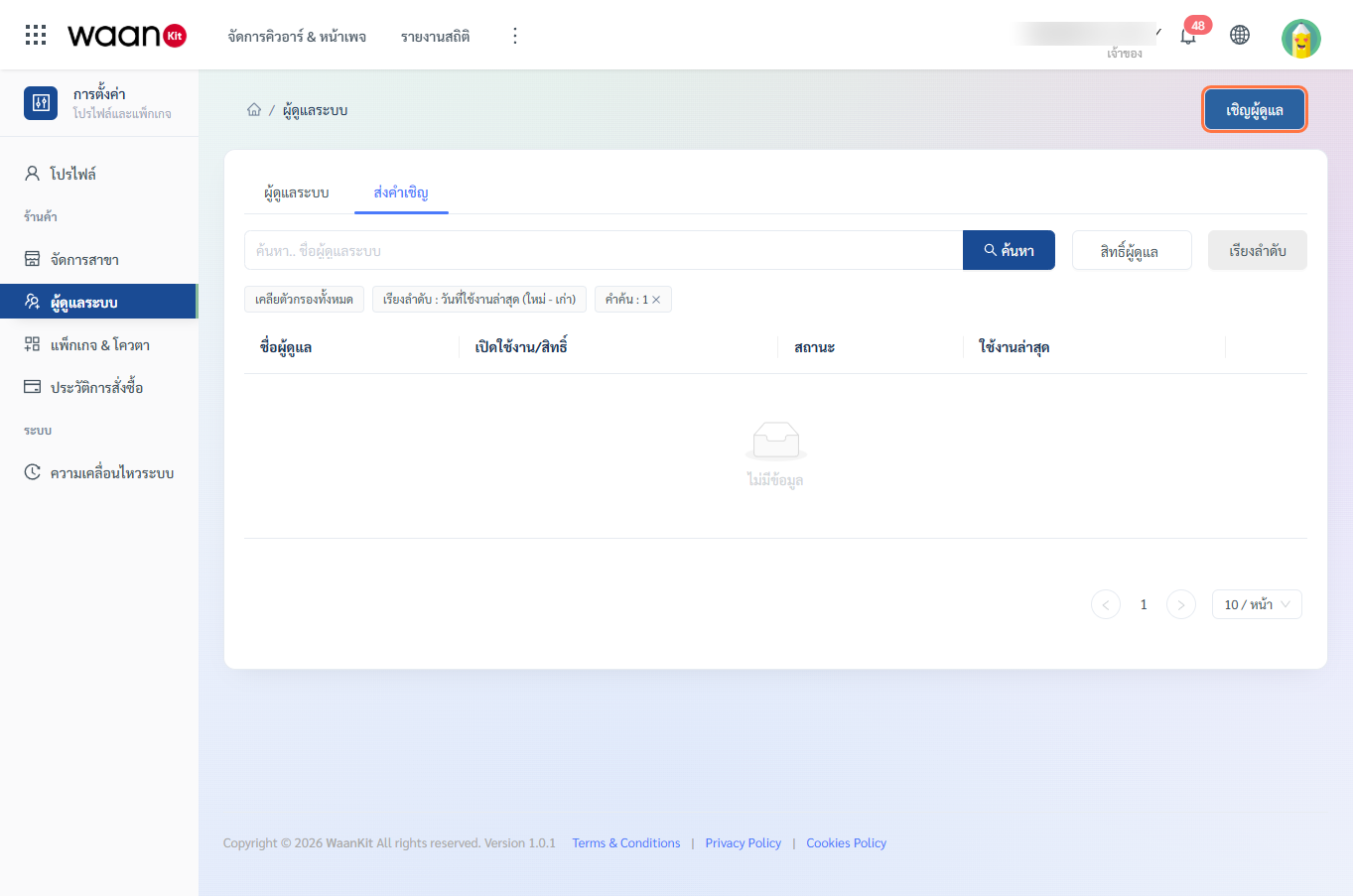
[!NOTE] The "+ Invite Staff" button is exclusively visible to users with the Owner role (
UseRights allowed={[0]}).
Step 3: Fill in Invitee Information & Assign Role
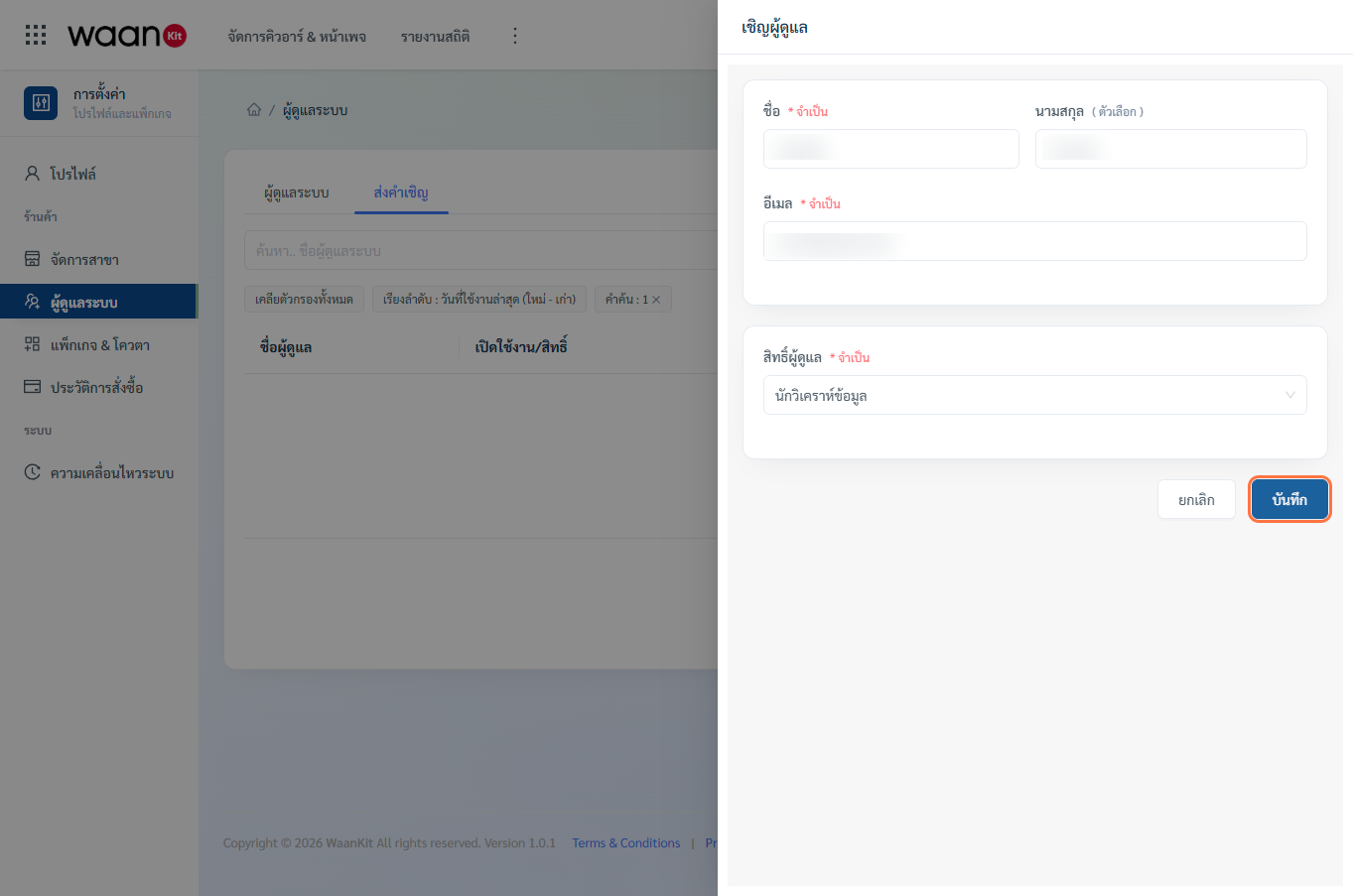
Complete the required fields:
- First Name: (Required) Enter the invitee's first name (up to 255 characters).
- Last Name: Enter the invitee's surname (optional).
- Email: (Required) Enter a valid email address. Format validation is performed automatically.
- Admin Rights: (Required) Select the role from the dropdown:
- Manager: Can manage branches, links, QR codes, and landing pages.
- Data Analyst: Read-only access to analytics and reports.
Step 4: Validate Quota & Confirm Invitation
- Review the entered information and click "Save".
- A Popconfirm prompt will ask "Confirm Save Data". Click "OK".
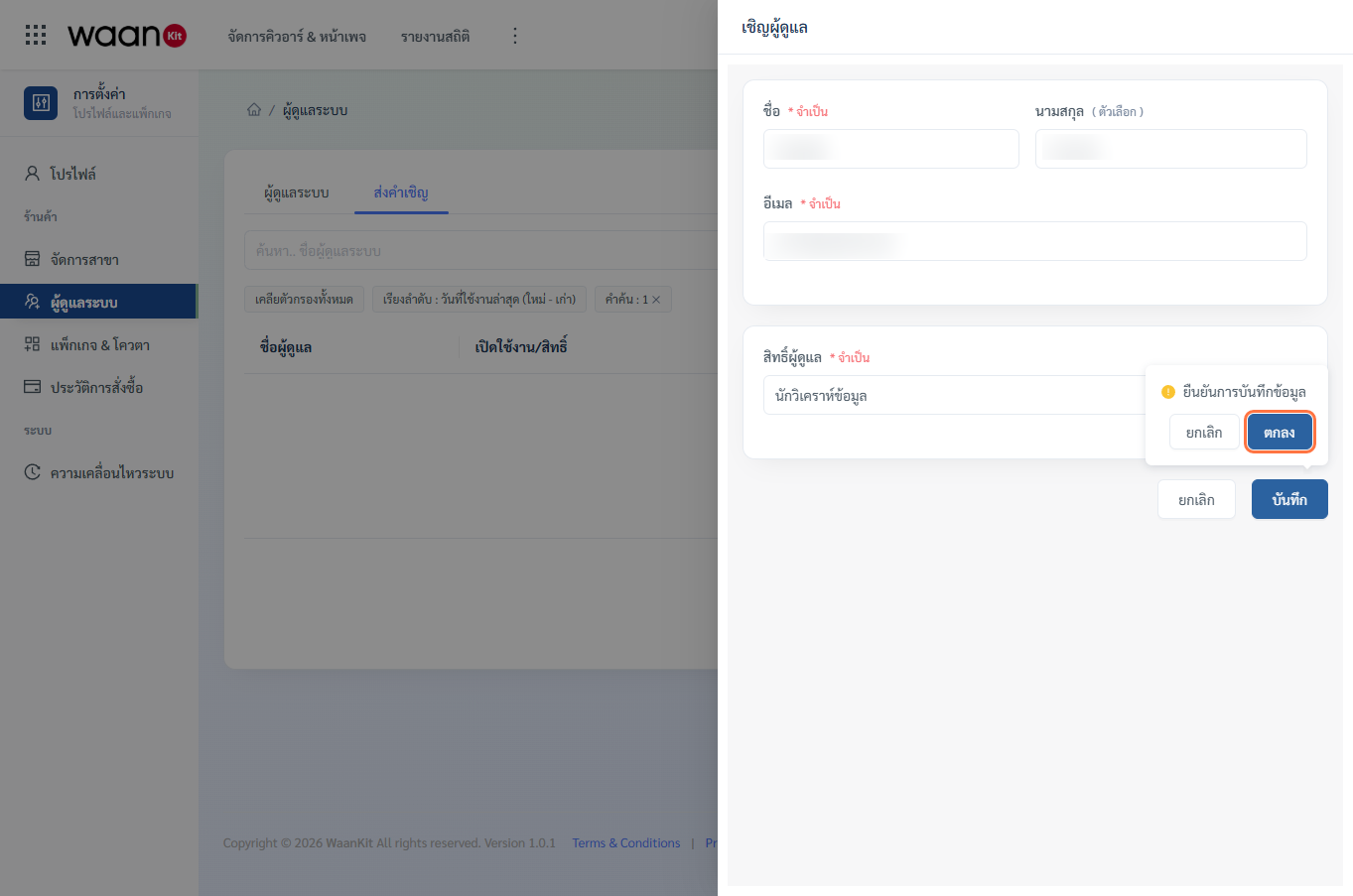
- The system verifies package seat availability (
checkQuotaPackage) and sends an automated invitation email. A green success message "Saved Successfully" will appear.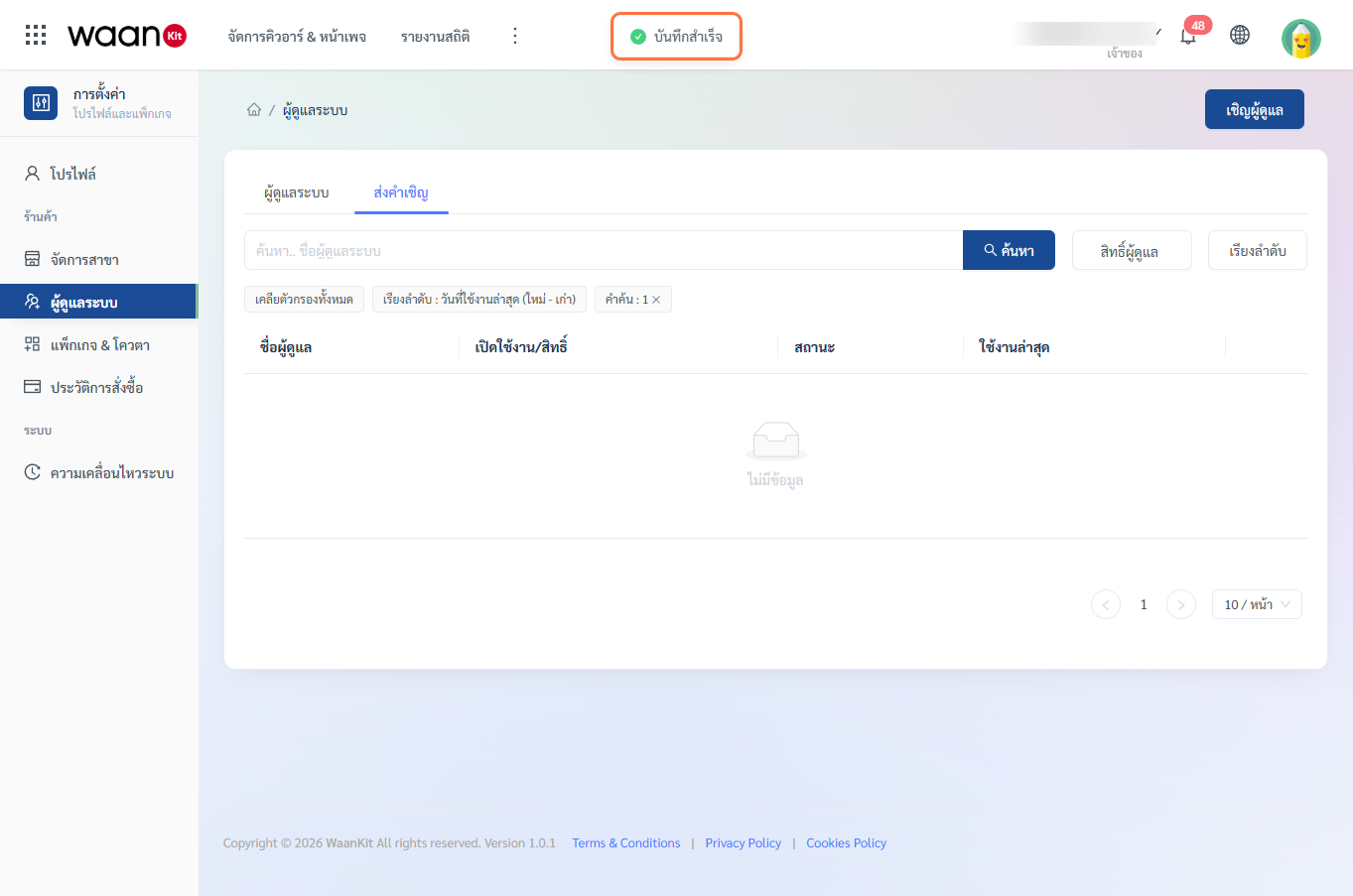
Step 5: Check Pending Status in Invitations Tab
After sending, the invitation appears in the "Invitations" tab with a gray "Waiting for a response" status tag.
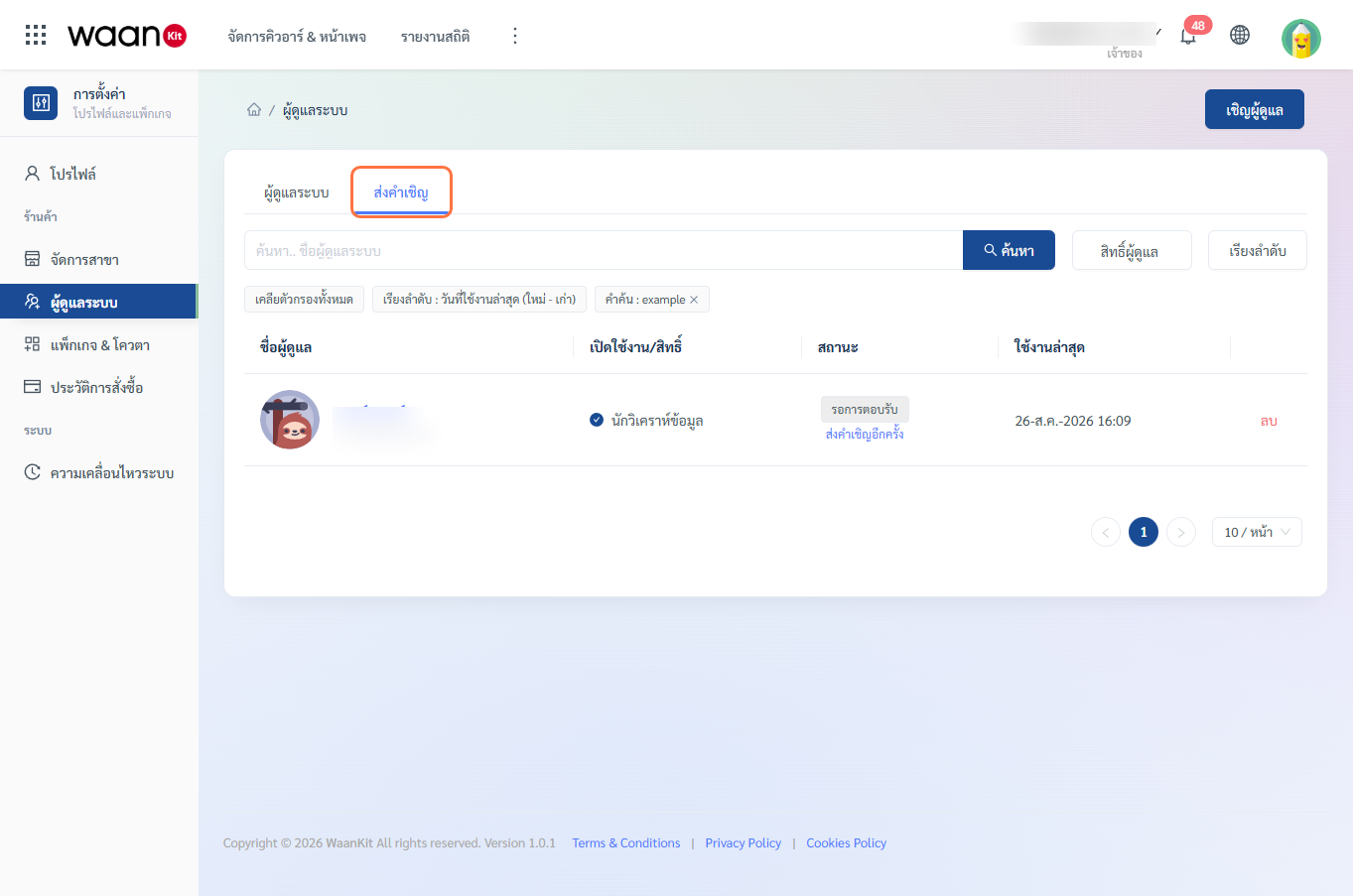
- When Accepted: The user is automatically moved to the "Admin Staff" tab with a green
"Joined"tag. - Resend Email: If the recipient didn't receive the email, click "Resend Invitation".
Troubleshooting & Tips
[!WARNING] Quota Limit Reached: If your team limit is full, the system displays a warning message (
"Unable to invite staff"). Visit Packages & Quotas to upgrade your plan tier.
[!TIP] New Users: If the invitee does not have an existing WaanKit account, the email invitation provides a direct link to set up their password and join instantly.