

In-App Notification Center
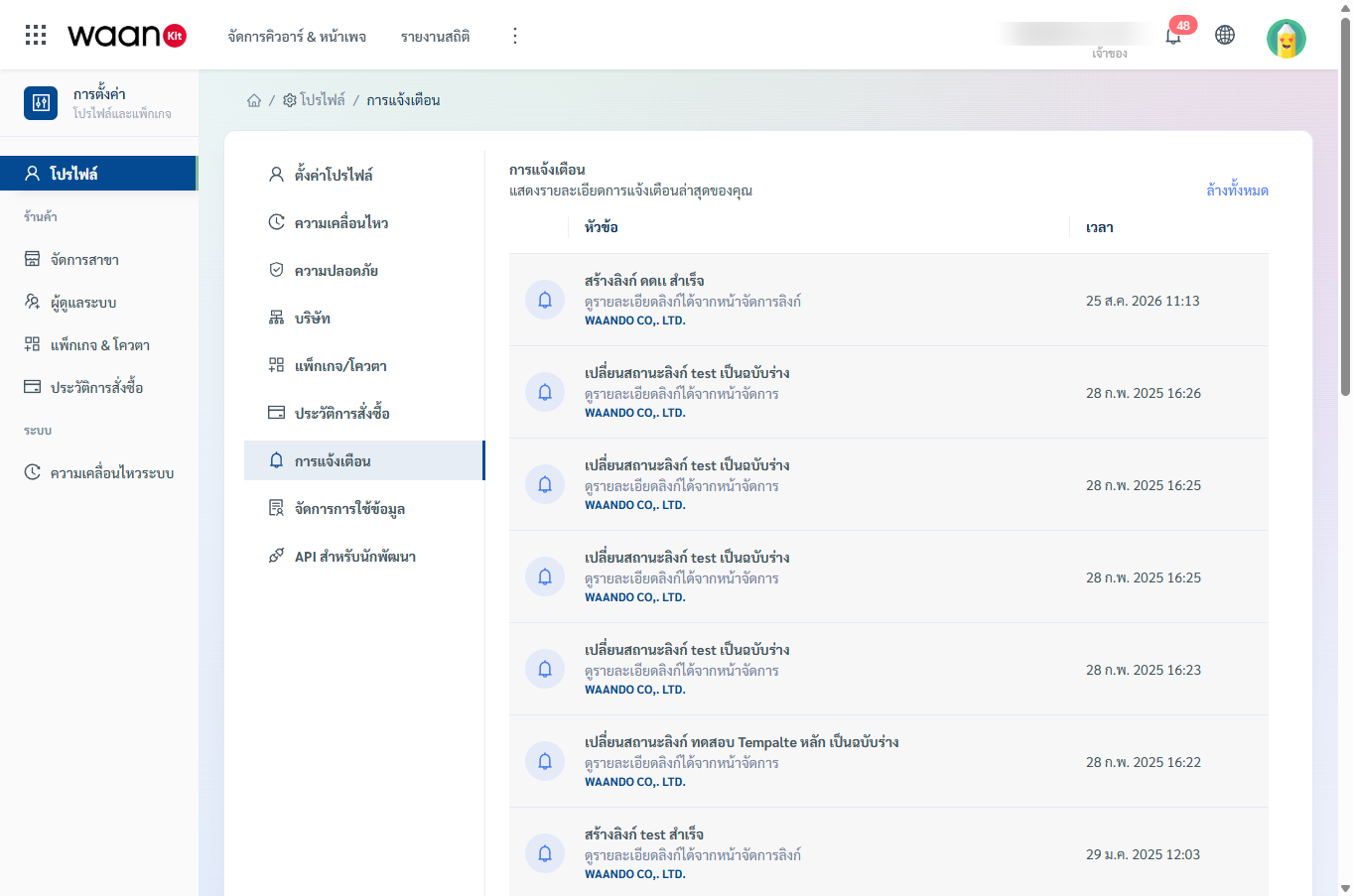
The Notification page (/app/profile/notification) serves as the central inbox for all platform events and activity alerts across WaanKit, including link status updates, system maintenance announcements, security alerts, and cross-workspace notifications.
Accessing the Notification Center
You can access the Notification Center in two ways:
- Via the Main Sidebar: Navigate to "Settings / Profile & Packages" > "Notification".
- Via the Header Bell Icon: Click the notification bell icon located at the top-right corner of the screen and select to view all notifications.
1. Notification Feed Overview
The notification table chronologically lists all events from newest to oldest, categorized with distinct visual icons:
| Component | Description |
|---|---|
| Category Icon | Identifies the event type: • Mail: Email delivery and communication digests. • Bell: General system notifications and operation updates. • Warning: Security advisories and critical threshold warnings. • Message: Customer feedback and survey response submissions. |
| Title & Details | Outlines the event subject (Title), description (Message), and the associated Workspace/Company badge. |
| Timestamp | Real-time date and time formatted according to your configured Time Zone. |
| Read State | Unread entries are highlighted with a light gray background (bg-gray-lightest) for immediate visibility. |
2. Reading Alerts & Cross-Workspace Auto-Navigation
Clicking any row in the notification feed triggers automated actions:
- Mark as Read: WaanKit automatically marks the item as read and decrements the unread count badge in the header.
- Deep-Link Redirection: If the notification contains an actionable URL, it opens the destination page in a new browser tab.
- Cross-Workspace Context Switching:
- If the alert originates from another workspace you belong to, a confirmation dialog will appear: "Confirm Switch Workspace / Company".
- Upon clicking "OK", WaanKit will seamlessly switch your active workspace session and navigate directly to the relevant resource.
3. Clearing All Notifications (Clear All)
To dismiss all pending unread items and mark everything as read:
- Click the "Clear All" link at the top-right of the notification panel.
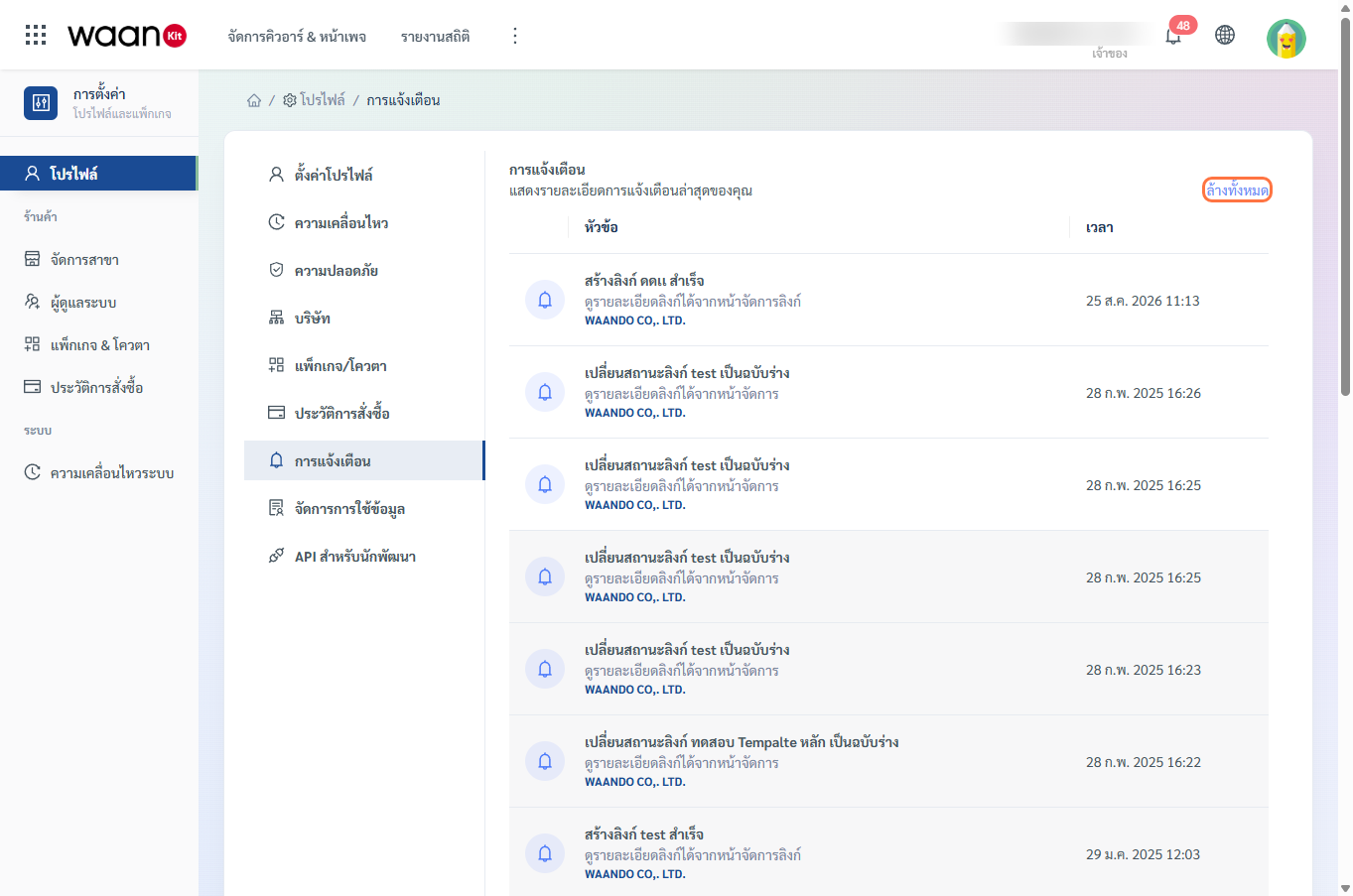
- The system marks all entries as read and displays a confirmation toast: "Clear all notifications successful".
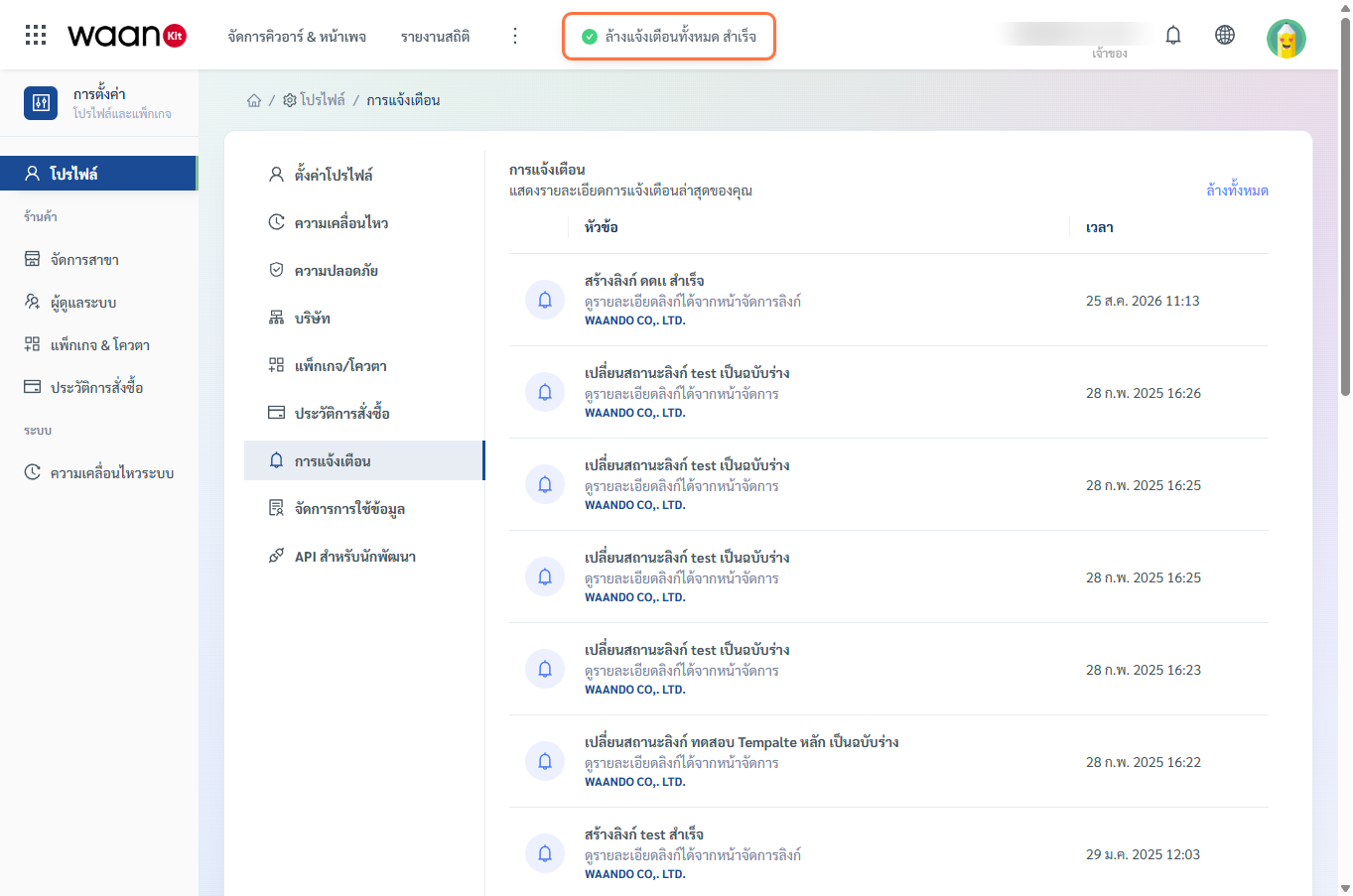
- The unread notification badge counter in the top header resets to zero immediately.
4. Pagination & Page Sizing
You can customize the number of displayed records (10, 20, or 50 entries per page) via the bottom-right pagination selector, or use the Quick Jumper input to navigate directly to any page.