

All Links Dashboard Overview
The All Links directory (/app/apps/nfc/index) provides centralized management for all enterprise Smart Links, Dynamic QR Codes, Mobile Landing Pages, and Digital Business Card Groups. It includes multi-tier search and filtering, row-level quick actions, and batch processing tools.
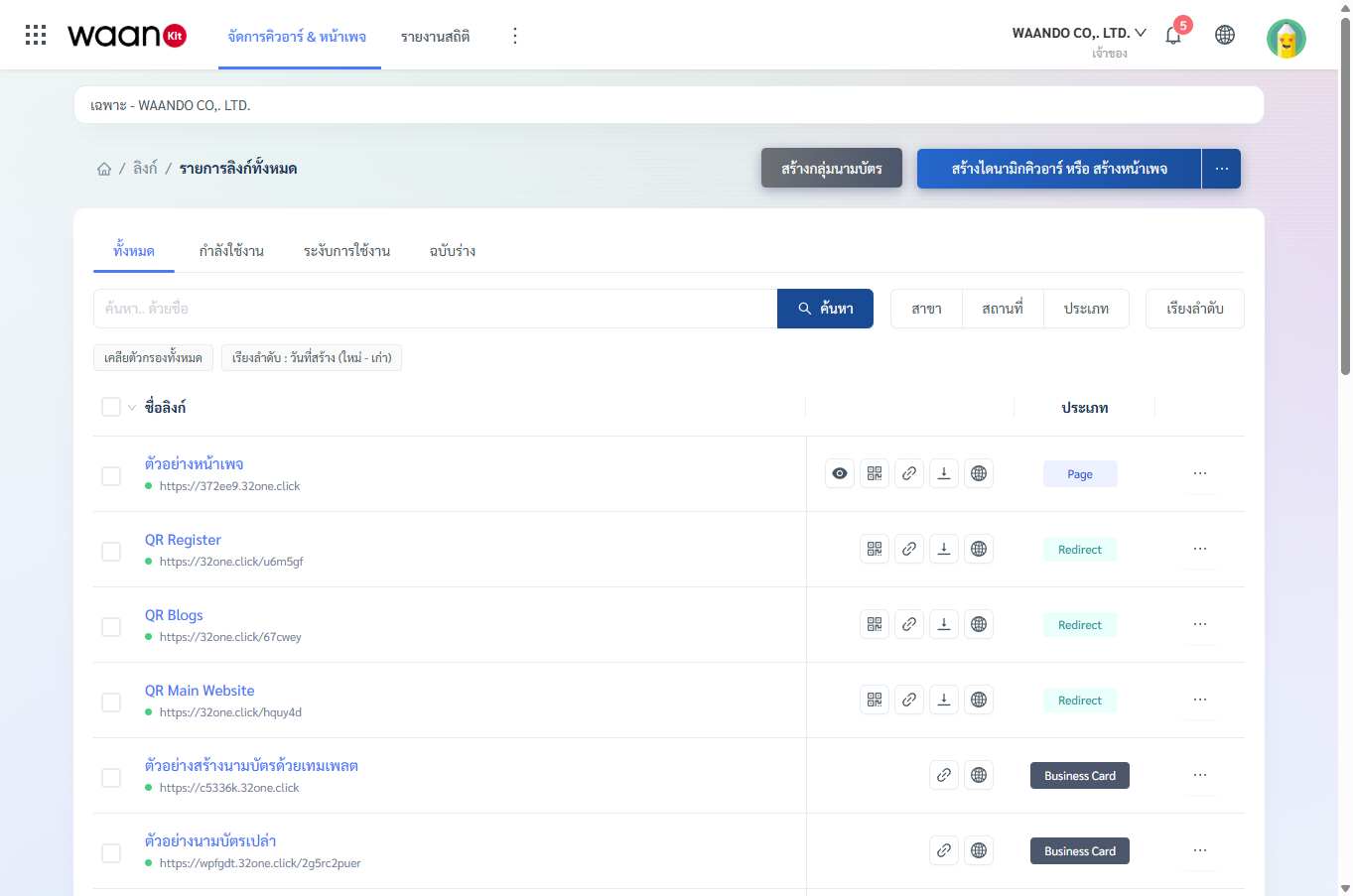
1. Status Tabs & Creation Controls
1.1 Status Tabs
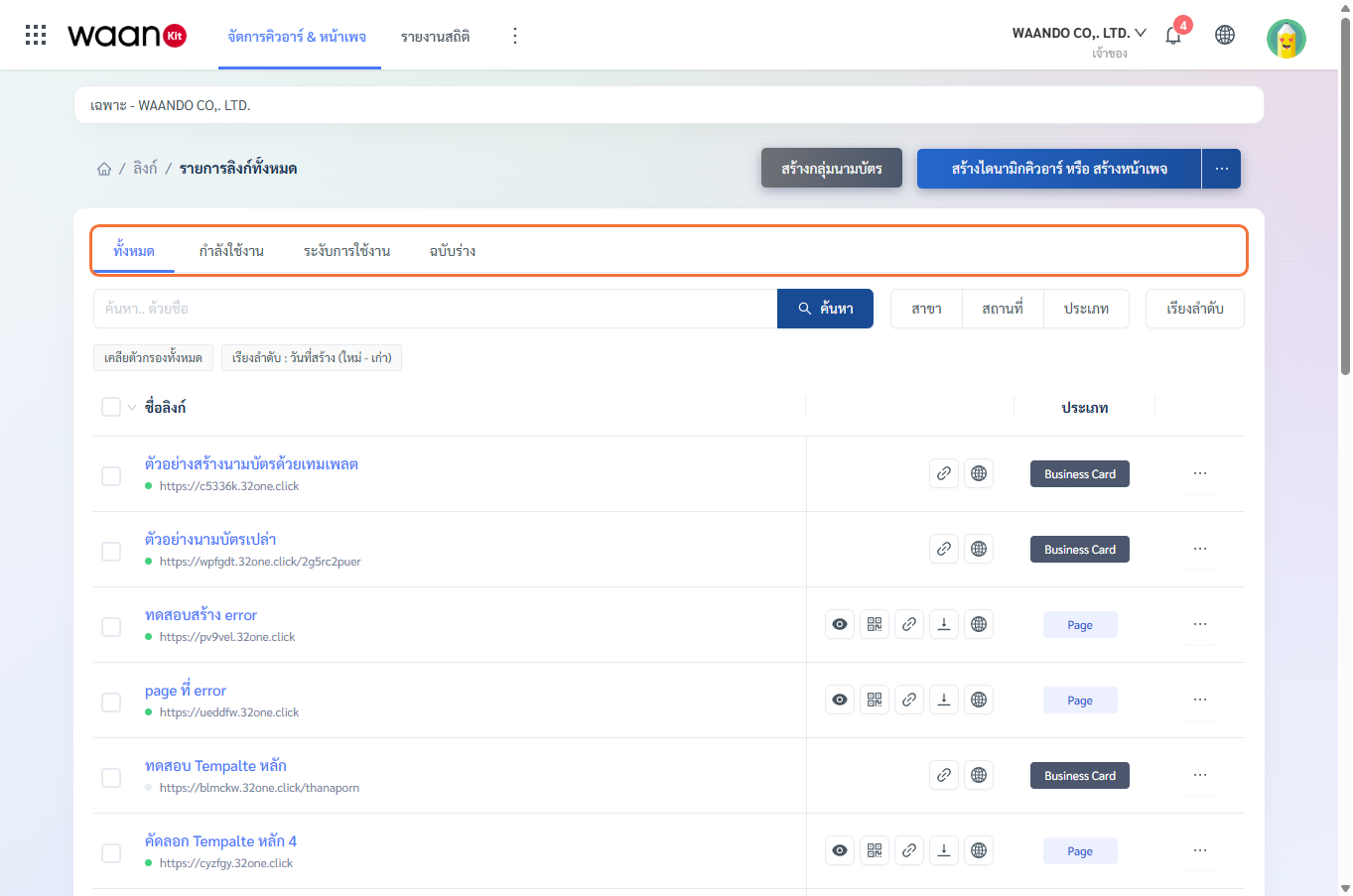
- All: Displays all links across the workspace.
- Active: Displays published and operational links (green status indicator).
- Suspended: Displays temporarily disabled links (red status indicator).
- Draft: Displays unpublished links under development (gray status indicator).
1.2 Creation Action Buttons
- Create Business Card Group: Initializes an enterprise employee business card directory with optional theme templates.
- Create Dynamic Link: Generates a direct URL redirect or opens the visual Mobile Page Builder.
2. Advanced Search & Multi-Tier Filters
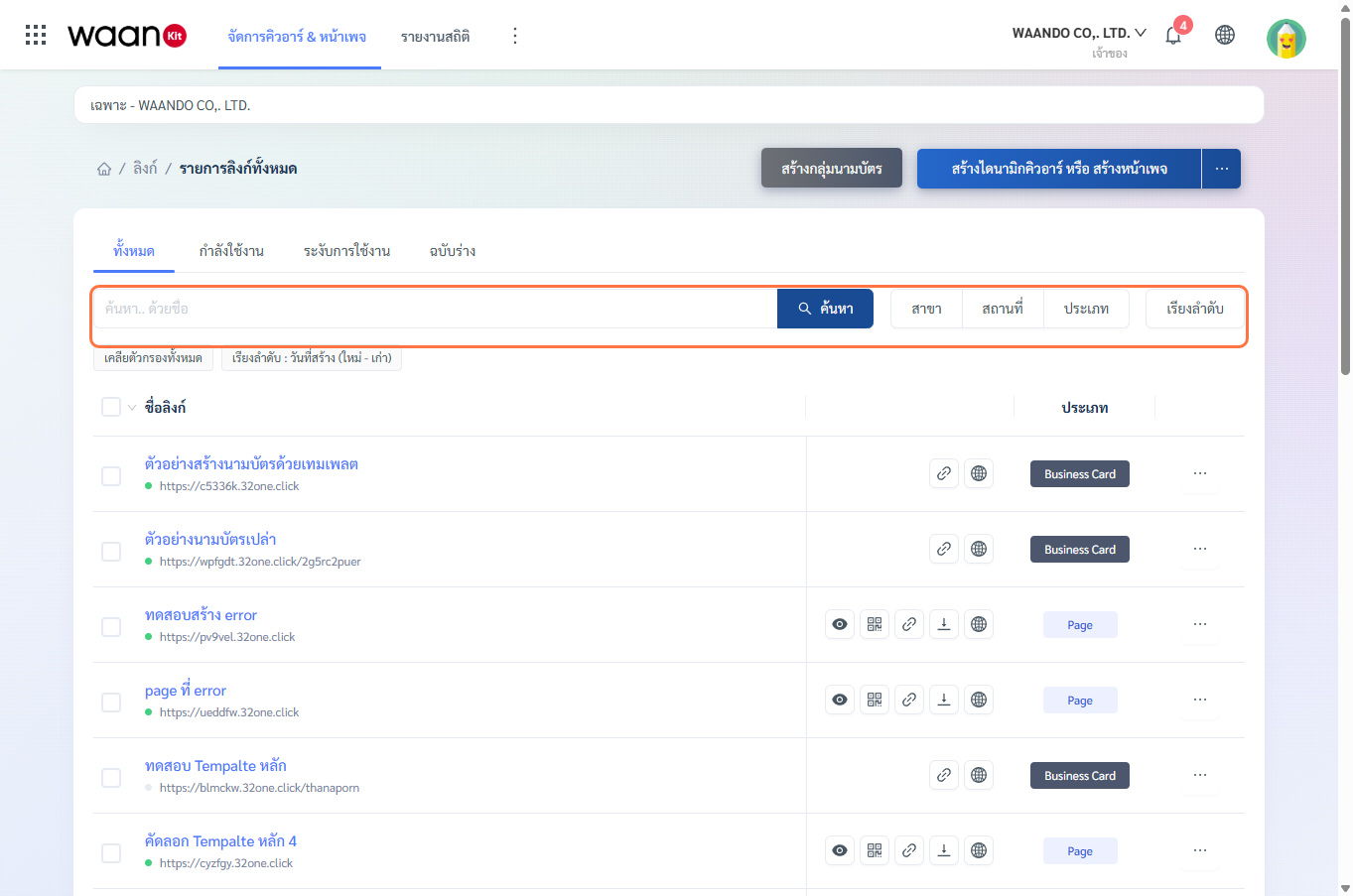
2.1 Keyword Search
Search by link name, code, or alias and press Search or Enter to filter records immediately.
2.2 Branch Filter Drawer
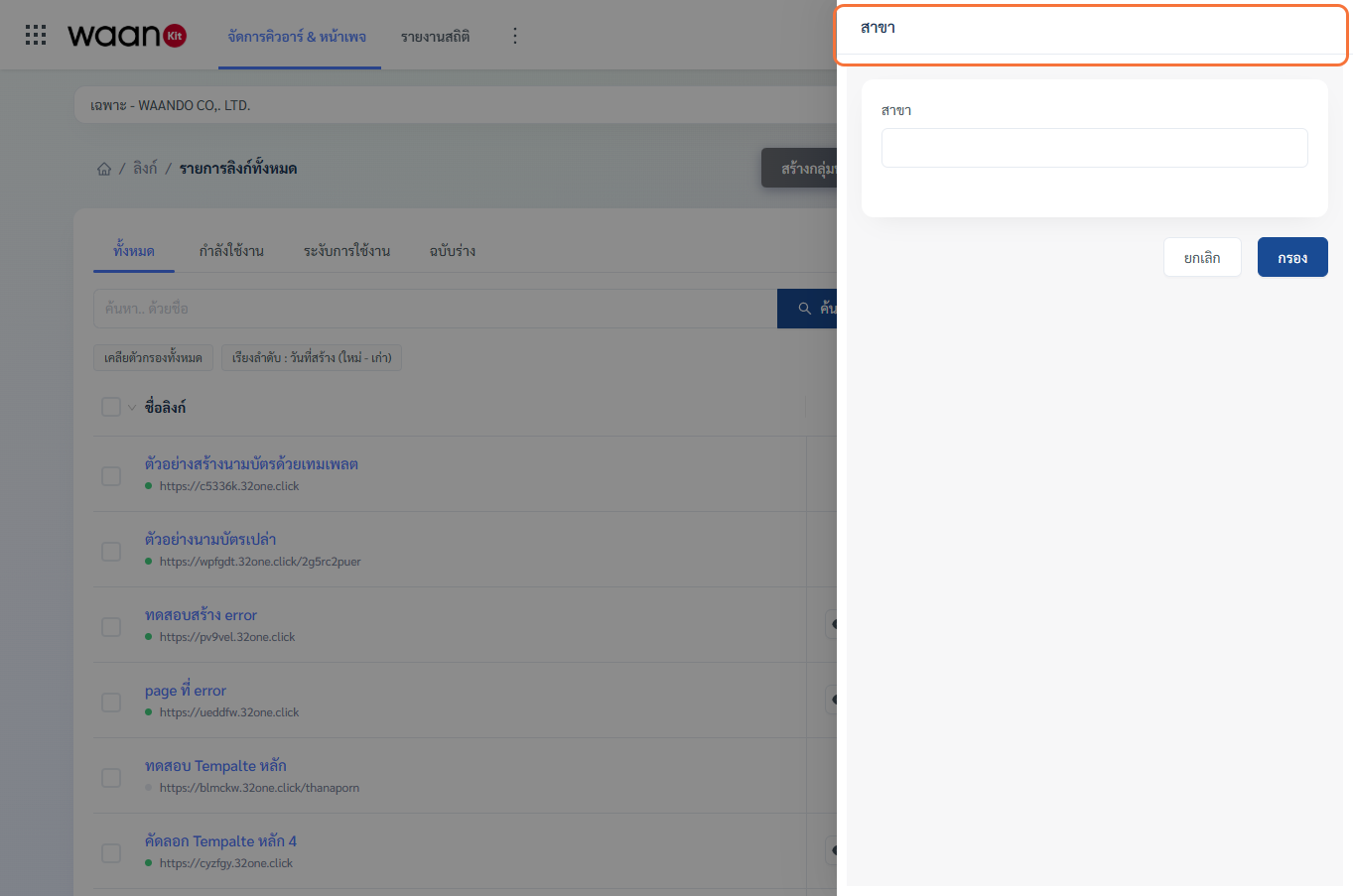
Filter records by assigned company store branch.
2.3 Location Hierarchy Filter
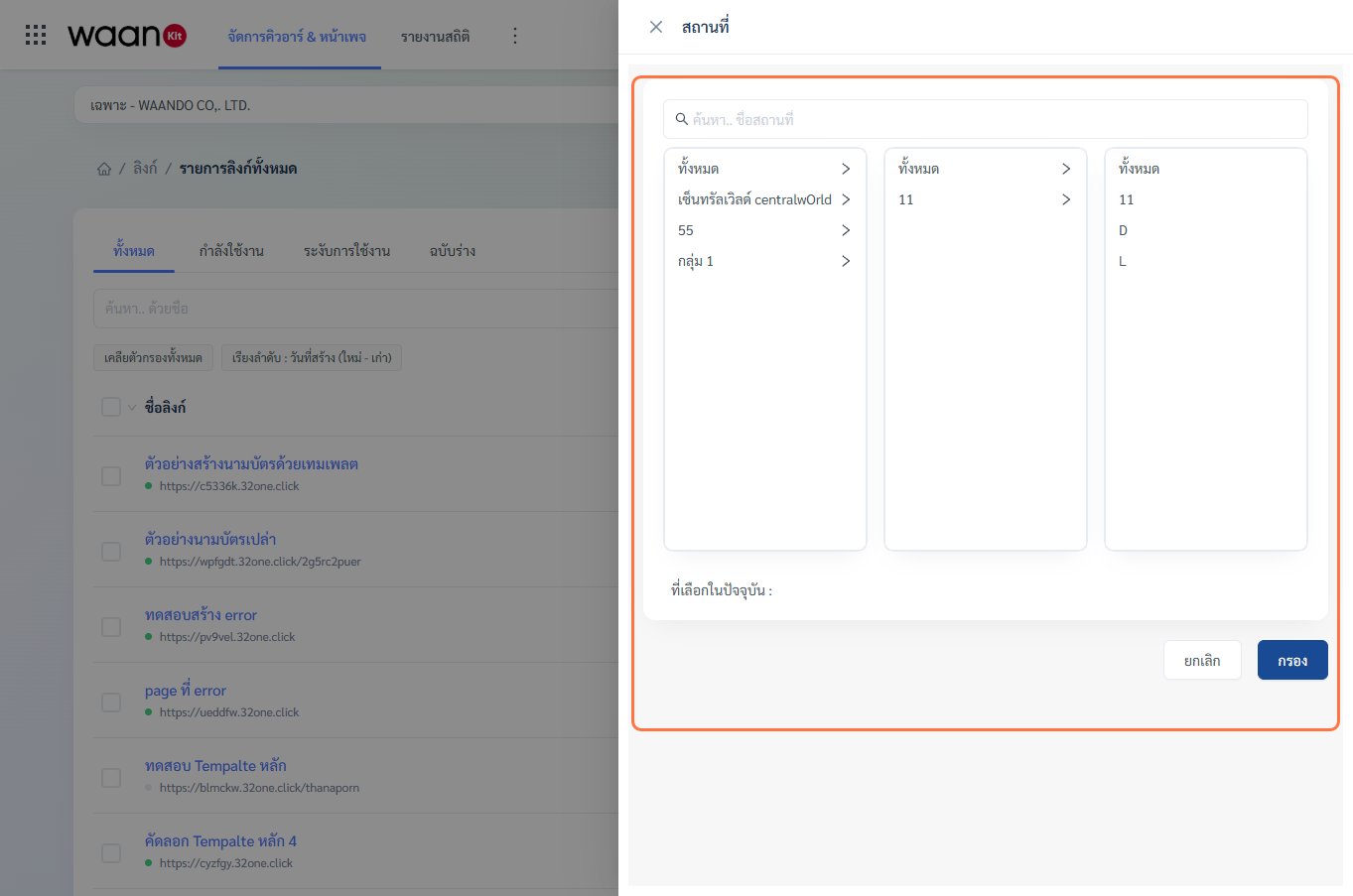
Filter touchpoints across physical deployment tiers: Building > Floor > Zone.
2.4 Link Type Filter
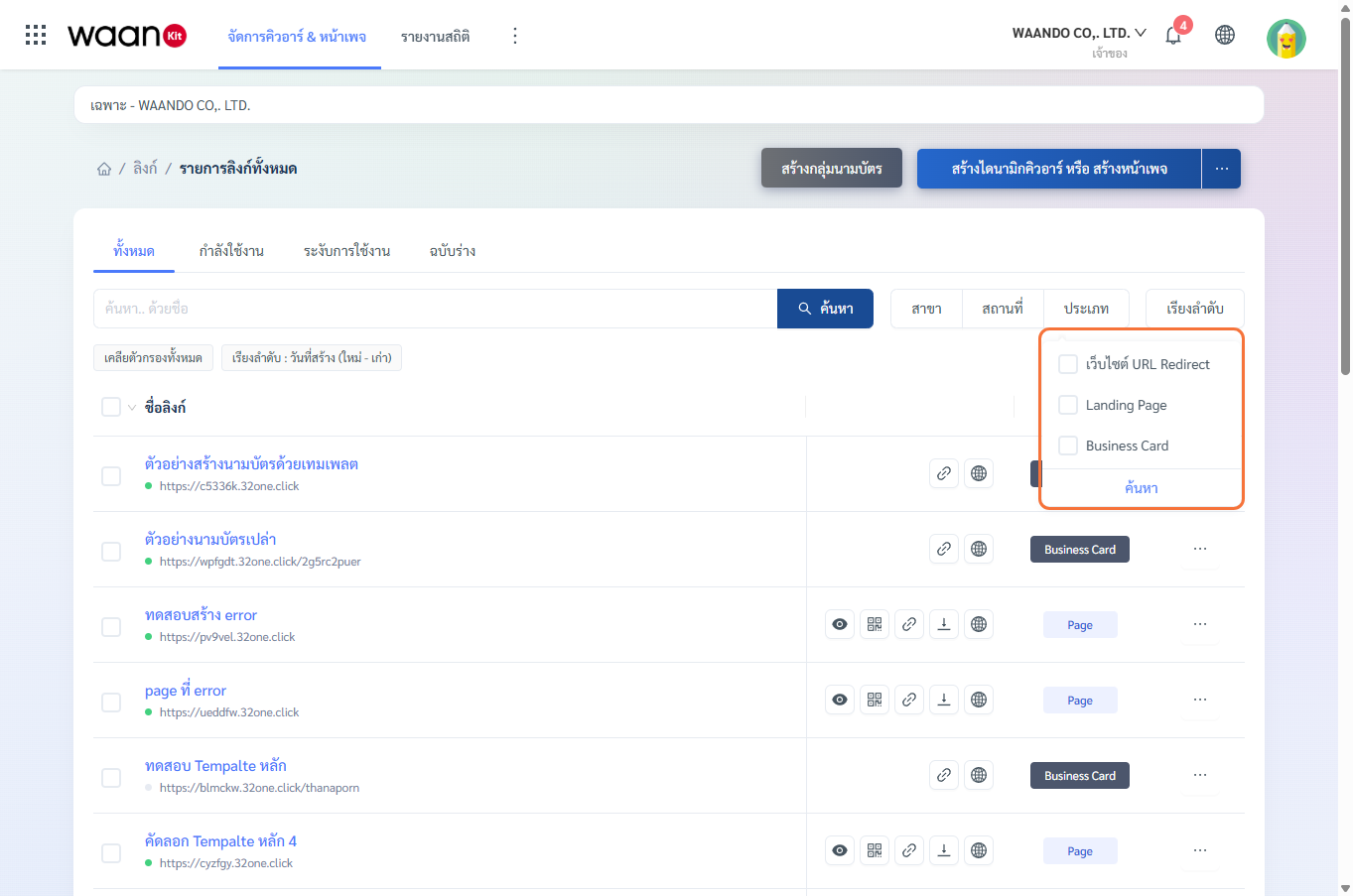
Filter list by core architecture:
- Direct URL Redirect: Dynamic forwarding link with editable target URL.
- Landing Page: Mobile web page created with Page Builder.
- Business Card: Enterprise digital vCard team directory.
2.5 Sorting Options
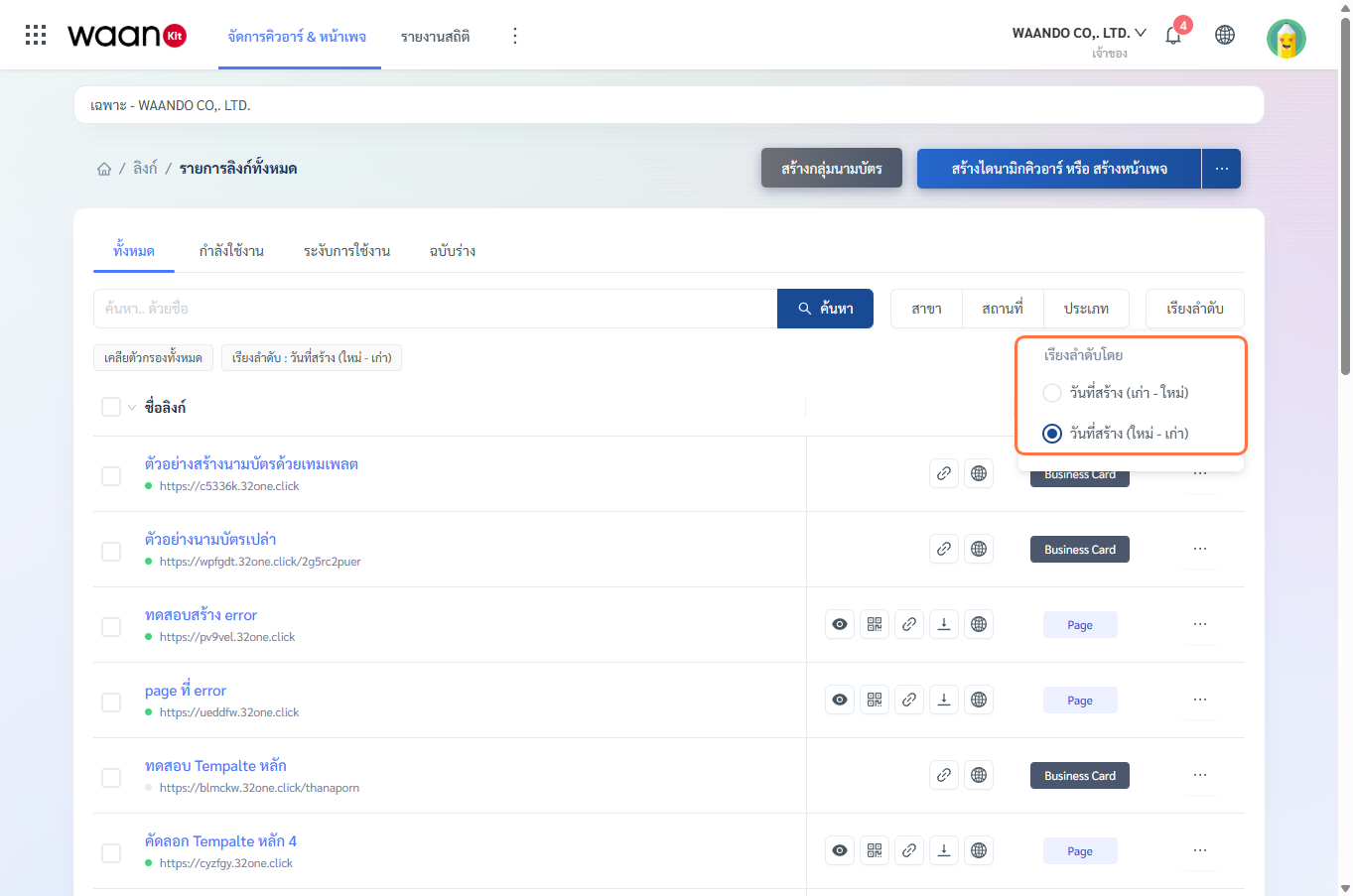
- Creation Date (Newest - Oldest): Most recent items first (default).
- Creation Date (Oldest - Newest): Earliest items first.
3. Inline Quick Actions
Each row in the link directory includes immediate action shortcuts:
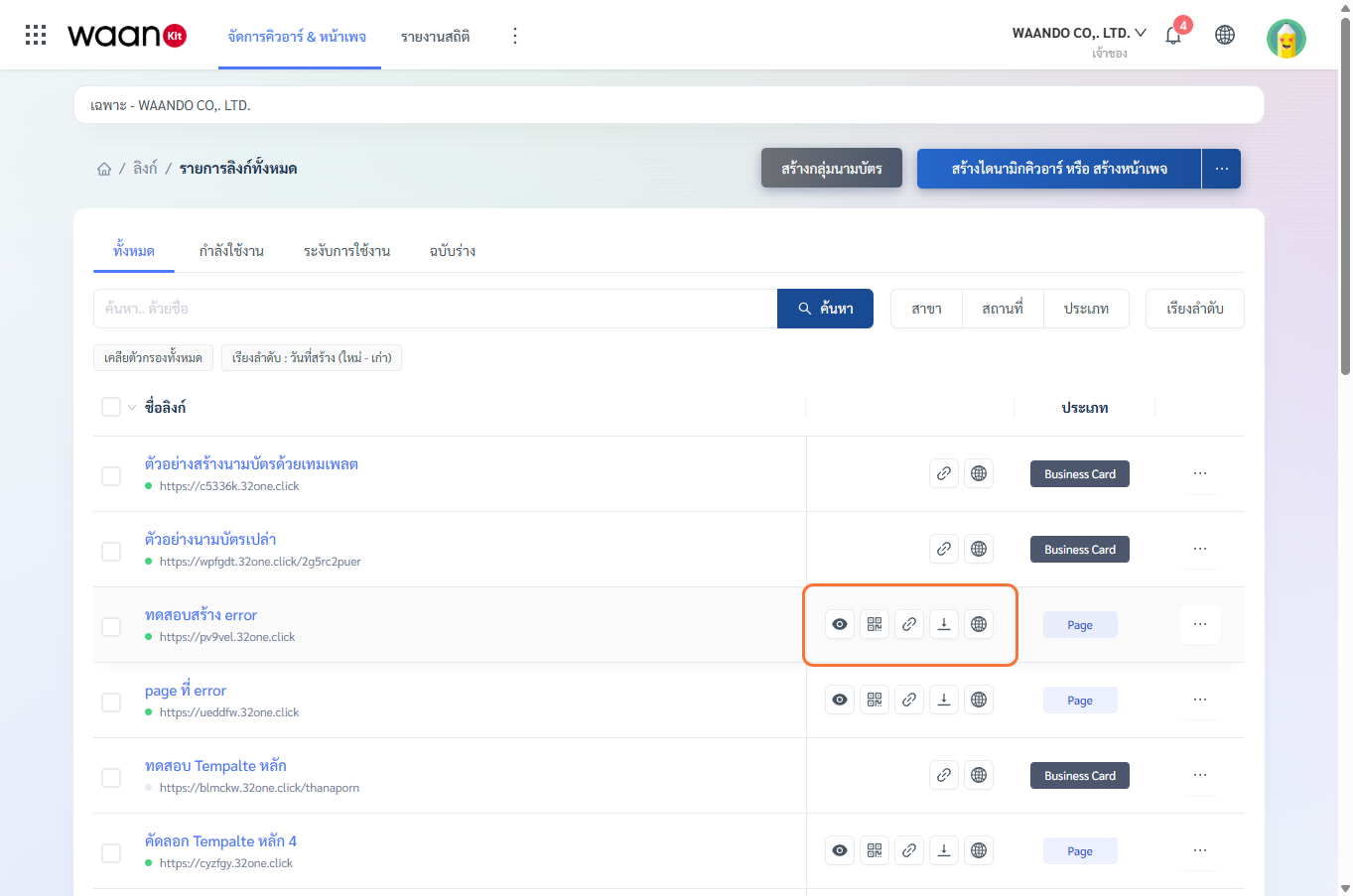
| Action Button | Description |
|---|---|
| Preview | Opens a mobile preview modal of the landing page. |
| View QR | Opens a full-size modal of the QR Code for scanning tests. |
| Copy Link | Copies the public Smart Link URL to the clipboard. |
| Download QR | Downloads the current styled QR Code image file. |
| Public URL | Opens the destination URL in a new browser tab. |
4. Row Dropdown Actions (...)
Click the ... menu on the far right of any row to access comprehensive controls:
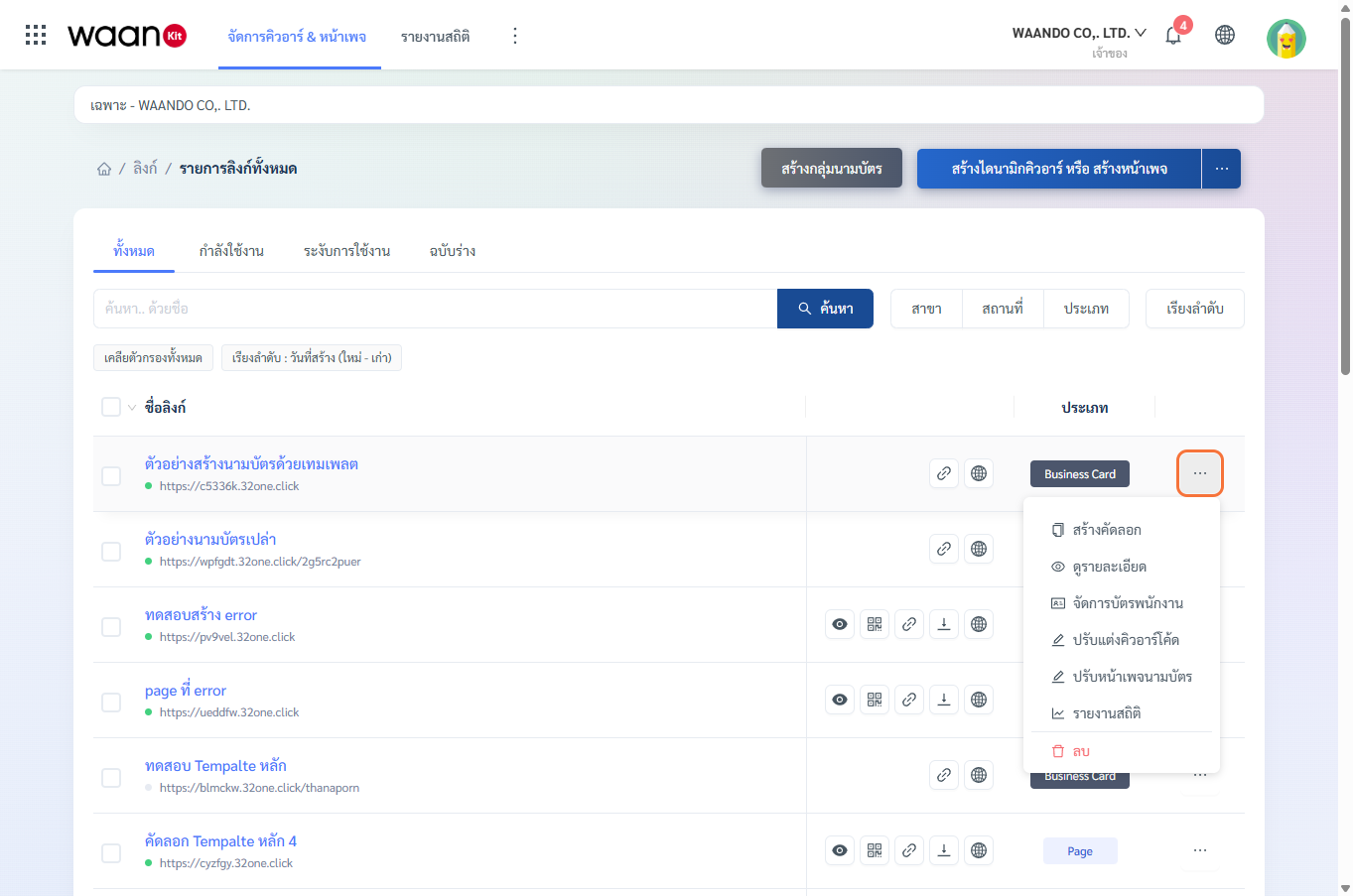
- Duplicate: Clones the link configuration and page design into a new record.
- See Details: Opens the Detail Studio for general settings, scheduling, and parameters.
- Manage Employee Cards: Opens the roster for Business Card group touchpoints.
- Customize QR Code: Opens the QR Code Styling Studio.
- Edit Page Builder: Opens the visual drag-and-drop page editor.
- Analytics Report: Accesses the 8-dimension analytics dashboard and heatmaps.
- Questionnaire Report: Reviews form submissions and downloads
.xlsxdata. - Generate QR from Parameters: Batch parameterized QR creation wizard.
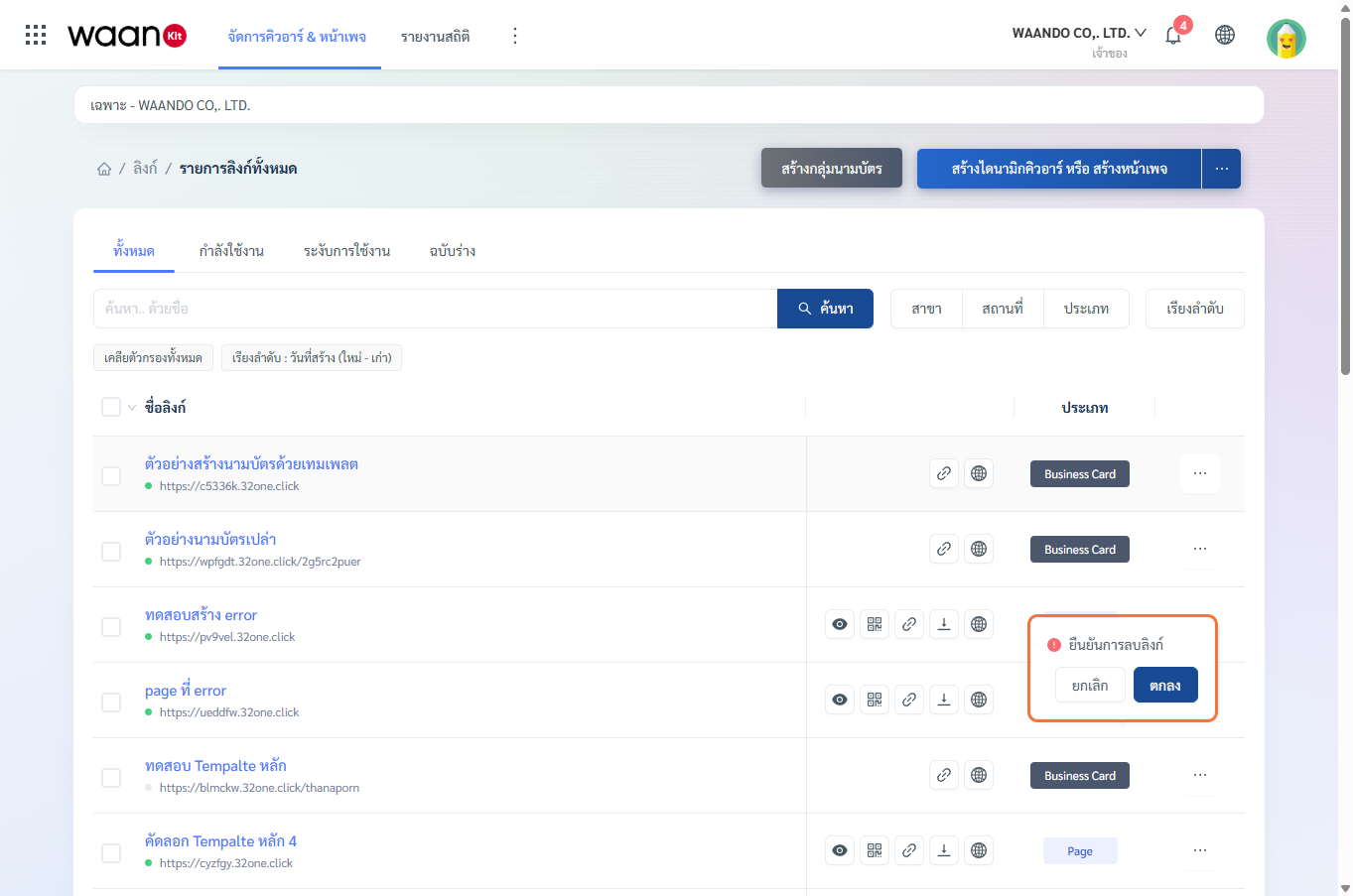
- Delete: Removes the link with confirmation prompt.
5. Batch Multi-Select Operations
Select multiple records via row checkboxes to execute batch actions simultaneously:
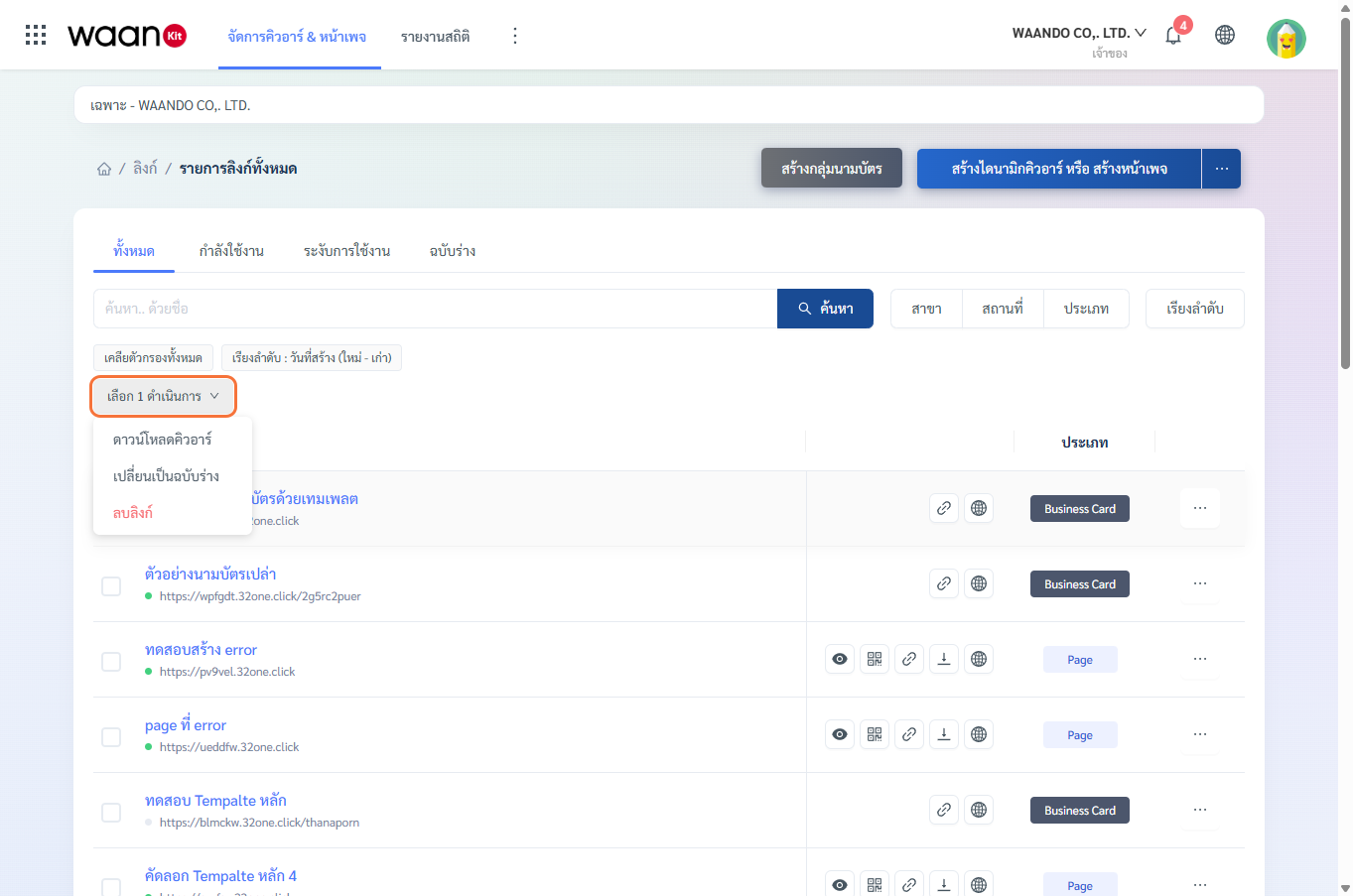
- Select individual checkboxes or the top header checkbox to select all rows on the page.
- Click the "Select X Actions" button above the table.
- Select an action:
- Batch Download QR as ZIP: Compresses all selected QR images into a single
.ziparchive. - Change to Draft: Moves selected links to draft status.
- Batch Delete: Deletes all selected records simultaneously.
- Batch Download QR as ZIP: Compresses all selected QR images into a single
6. Comparison of the 3 Smart Link Formats
| Type ID | Format Name | Primary Purpose | Common Use Cases |
|---|---|---|---|
1 |
Direct URL Redirect | Shorten URLs and deploy Dynamic QRs with editable destination addresses. | Social media links, restaurant table menus, app download links, Wi-Fi signs |
2 |
Mobile Landing Page | Build responsive mobile micro-sites using visual Page Builder blocks. | Link in Bio profile, event registration, promotional catalog, survey forms |
3 |
Digital Business Card Group | Centrally manage corporate staff vCards with instant phonebook saving (.vcf). | Sales team contact cards, executive profiles, NFC smart employee badges |
[!TIP] Enterprise Organization: Combine Business Card Groups with Branch and Location tagging to maintain clear access permissions across multi-branch organizations.