

Creating Mobile Landing Pages
The Mobile Landing Page system enables you to craft responsive, mobile-first micro-websites showcasing multimedia blocks, image galleries, social media links, and interactive feedback forms—without writing code. Each landing page includes its own dedicated Subdomain and advanced SEO controls.
1. Step-by-Step Creation Workflow
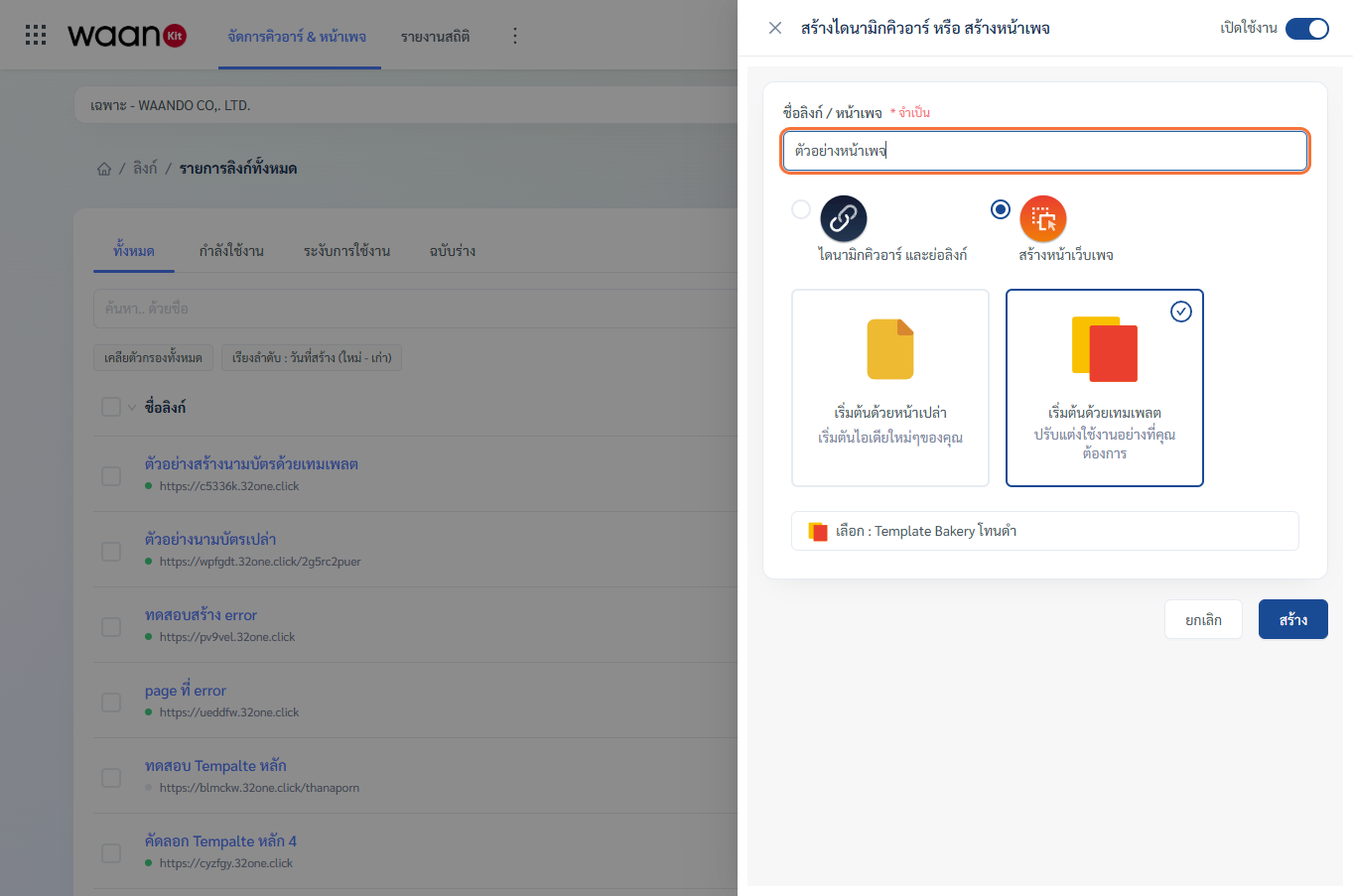
- On the All Links dashboard, click "Create Dynamic QR or Web Page".
- Select initial status via the top-right toggle switch ("Active" or "Draft").
- Enter Link / Page Name (Required) (e.g., "New Branch Grand Opening").
- Select "Create a web page" (Landing Page).
- Choose your starting format:
- Start with a blank page: Opens a blank canvas in Page Builder to assemble blocks from scratch.
- Start with a template: Opens the curated template gallery tailored for diverse industries.
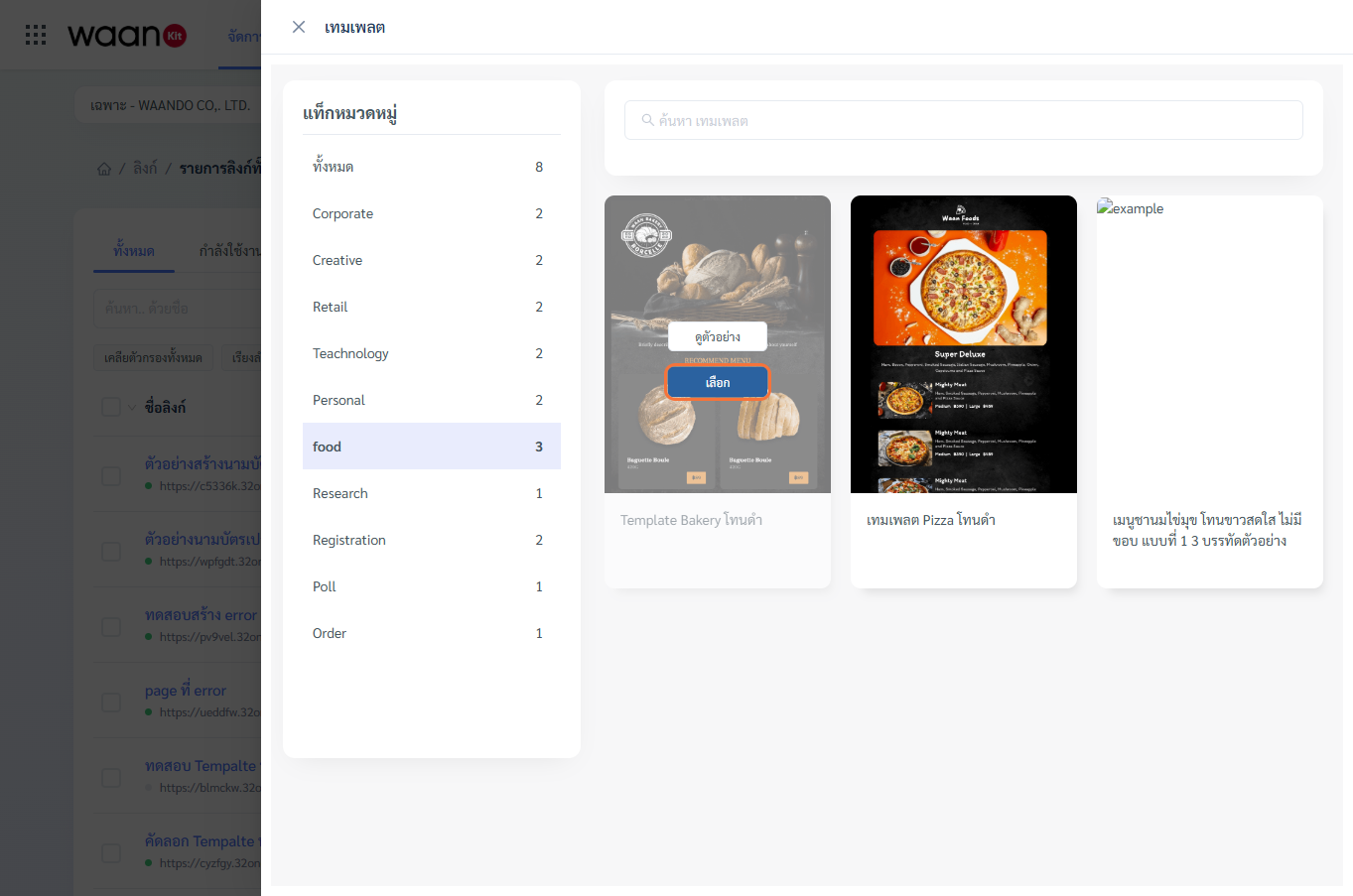
- Browse templates by industry category (Corporate, Creative, Retail, Technology, Personal, Food, Research, Registration, Poll, Order).
- Click "Preview" to inspect the mobile design, or click "Select" to adopt the template.
- Click "Create" to enter the Link Detail Studio and begin customizing your page.
[!TIP] Shortcut: Create Page from Template Gallery: You can also click the
...dropdown beside the creation button and select "Generate page links from templates" to open the template gallery directly.
2. Unique Landing Page Settings
The Landing Page Detail Studio (/app/apps/nfc/detail-nfc/[id]) includes specific configuration modules dedicated to web pages:
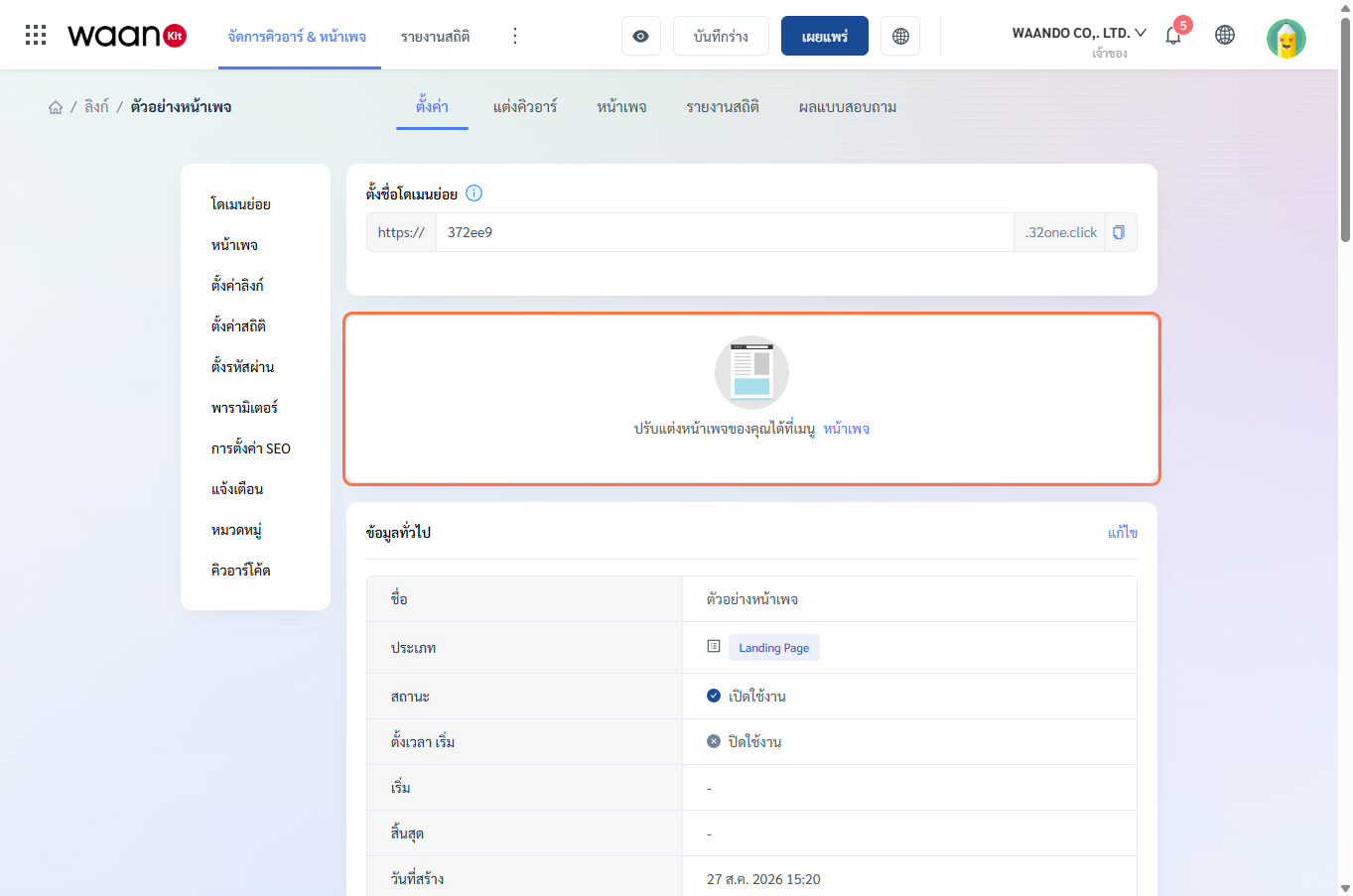
2.1 Name a Subdomain
Unlike Dynamic QR short links, Landing Pages receive their own independent Subdomain:
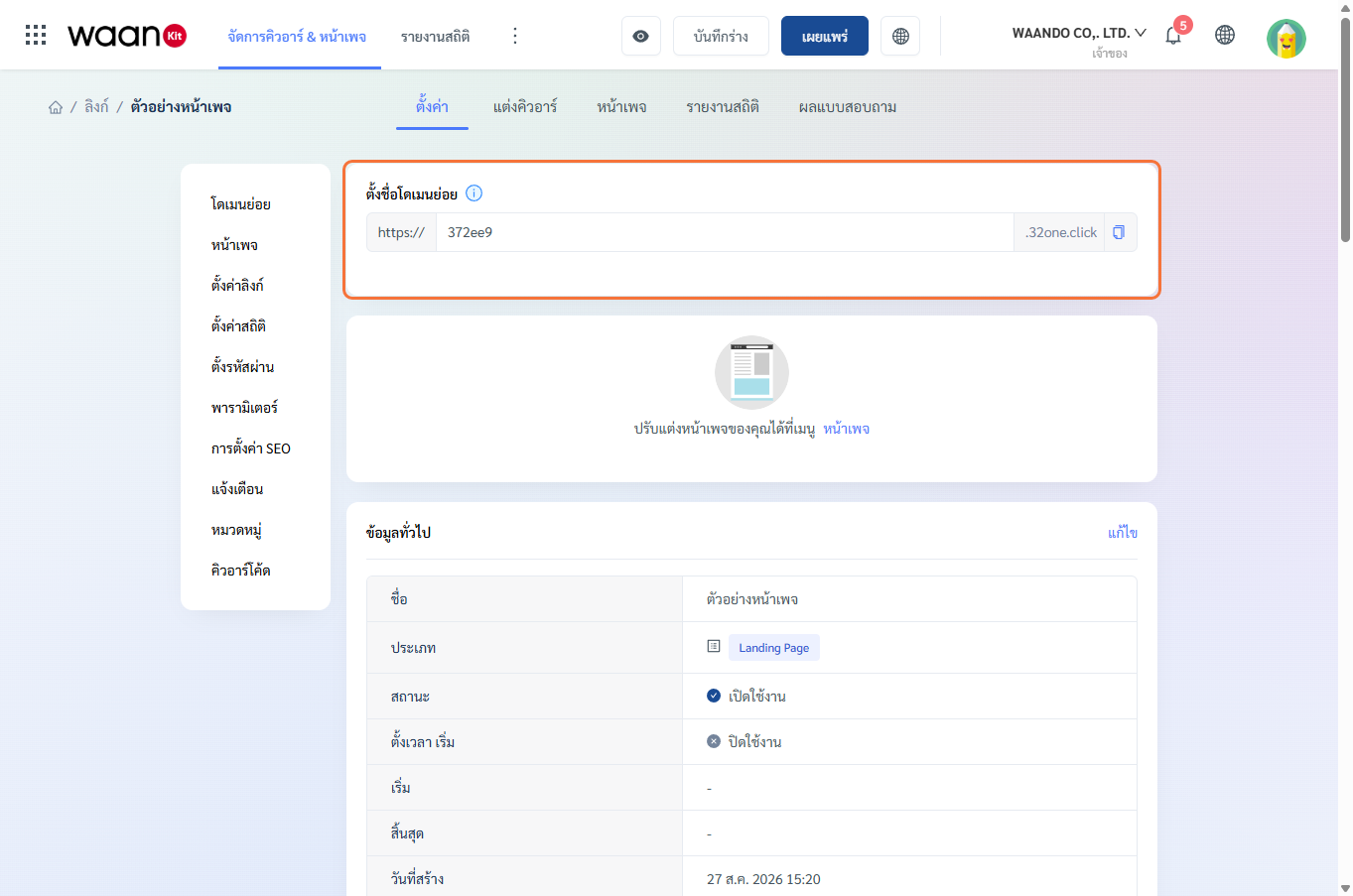
- URL Structure:
https://[your-subdomain].waando.com(e.g.,https://grand-opening.waando.com) - Naming Constraints:
- Length: 5 to 30 characters.
- Allowed characters: Lowercase letters (
a-z), digits (0-9), and hyphens (-). - No spaces or special symbols.
- Must be unique across the platform.
- Copy URL Button: Click the copy icon to share your subdomain link immediately.
2.2 Page Builder Studio Access
Central launchpad to the visual drag-and-drop Page Builder:
- Launch Page Builder: Click "Page" in the left anchor or the top header tab to enter the Page Builder (Read Visual Page Builder Guide).
- Preview Button: Click the eye icon in the top header toolbar to simulate mobile viewport rendering.
- Publish Button: Once design edits are finalized, click "Publish" to deploy changes live immediately.
2.3 SEO Settings & Social Share Previews
Optimize search engine visibility and social media link preview cards (Facebook, LINE, X):
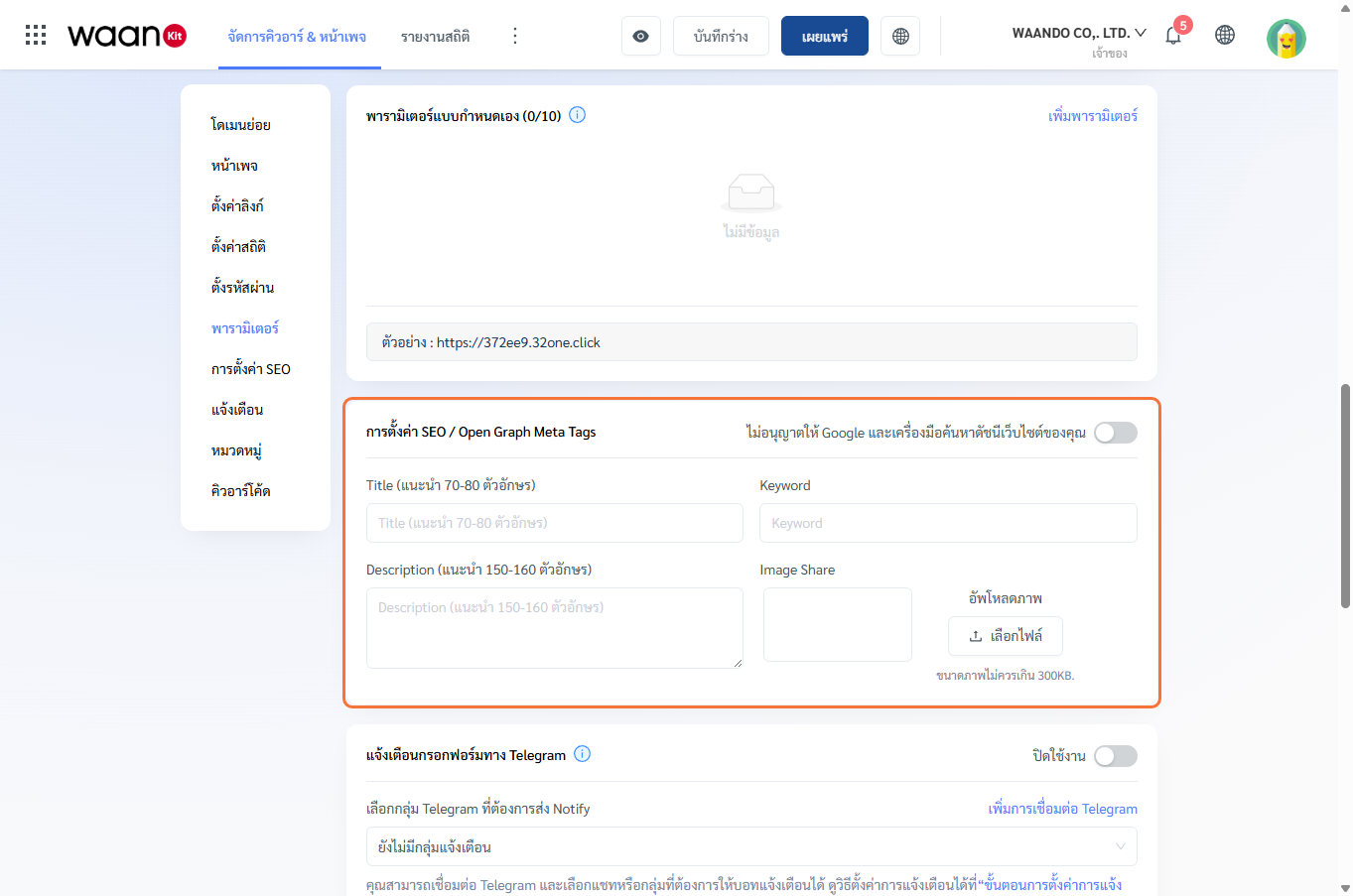
- Allow Google Indexing:
- Enable: Generates search engine indexing meta tags.
- Disable: Injects
noindexdirectives for private promotions.
- SEO Title: Browser tab title and Google search headline (up to 249 characters).
- SEO Description: Search summary snippet shown beneath the title on Google results.
- SEO Keywords: Comma-separated search keywords.
- Social Share Image (Open Graph):
- Upload a preview image (JPEG, PNG, SVG, WEBP up to 300KB).
- Automatically rendered as the preview thumbnail when shared in LINE or social media.
2.4 Form Submission Instant Alerts
If your landing page contains a Questionnaire or Contact Form Block, enable real-time alert notifications on every response submission:
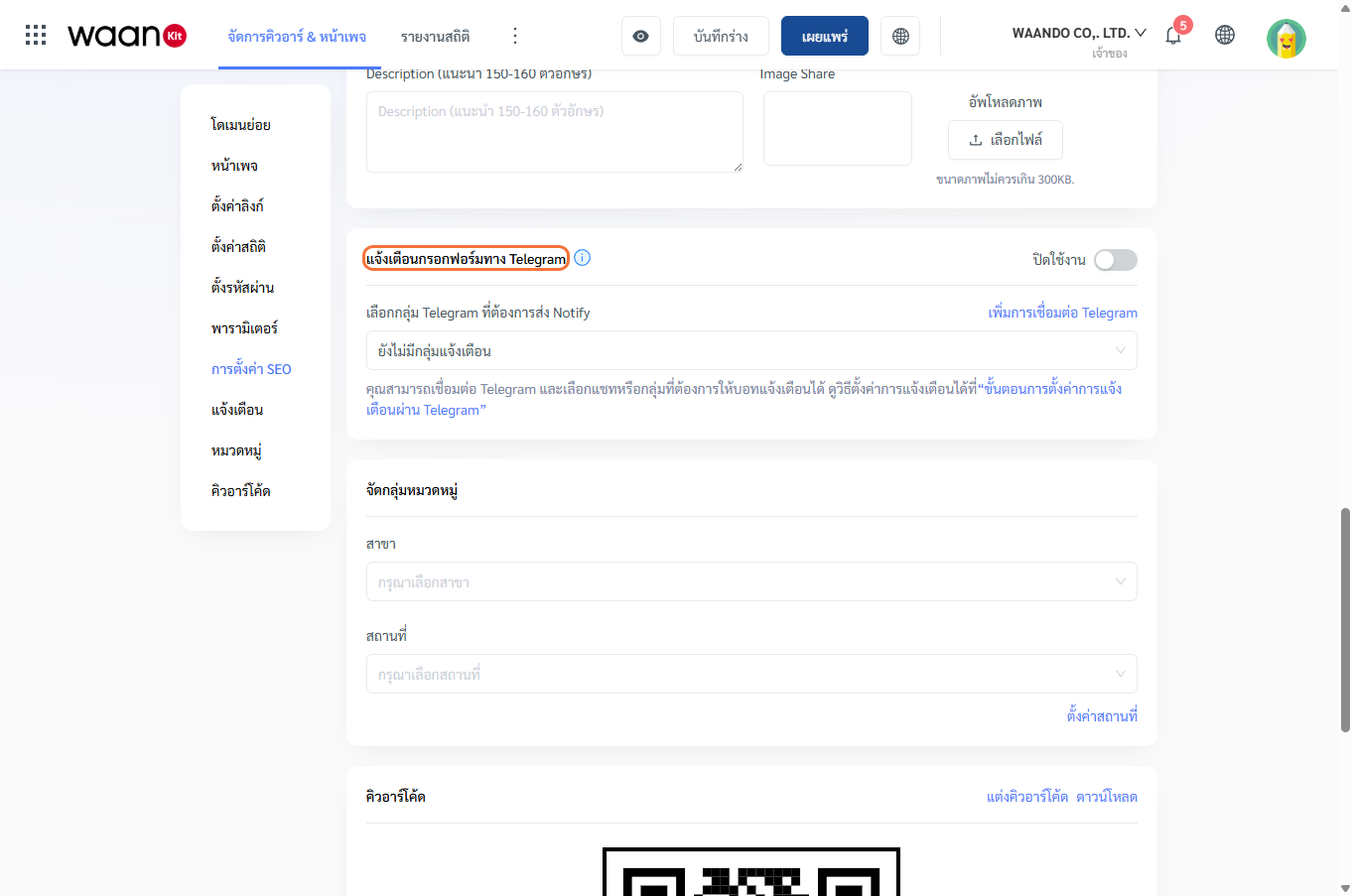
- Notification Status Switch: Enable to activate instant alert channels.
- Telegram Bot Notification Settings:
- Telegram Token: Input your bot token created from
@BotFather(e.g.,123456789:AAH...). - Telegram Chat ID: Enter the group chat ID or personal channel ID (e.g.,
-1001234567890). - Real-time Delivery: Upon customer submission, formatted response summaries with timestamp and field values are pushed directly to your team's Telegram group chat.
- Telegram Token: Input your bot token created from
- LINE Notify:
- Connect your LINE Notify Access Token to deliver automated alerts into your operations group chat.
3. Shared Link Configuration
The following settings are identical to those in Dynamic QR Codes. For complete instructions, please refer to the Dynamic QR Code & Short Link Guide:
[!NOTE] Summary of Shared Settings:
- General Link Settings: Status, audit history, and campaign schedule (Details)
- Tracking Analytics Pixels: Install Facebook Pixel, CAPI, GA4, and TikTok Pixel (Details)
- Password Protection: PIN code lock prior to page access (Details)
- Custom Parameters: URL query parameters and dynamic passthrough (Details)
- Category & Location: Associate pages with store branches and 3-level locations (Details)
- QR Code: Real-time preview, download, and QR Styling Studio integration (Details)