

Customer Feedback & Survey Intelligence
When you build registration forms, satisfaction surveys, or inquiry forms using the Page Builder, every customer submission is instantly logged and processed into the dedicated "Survey Results" dashboard of that Smart Link, complete with automated visual charts and a granular responses data table.
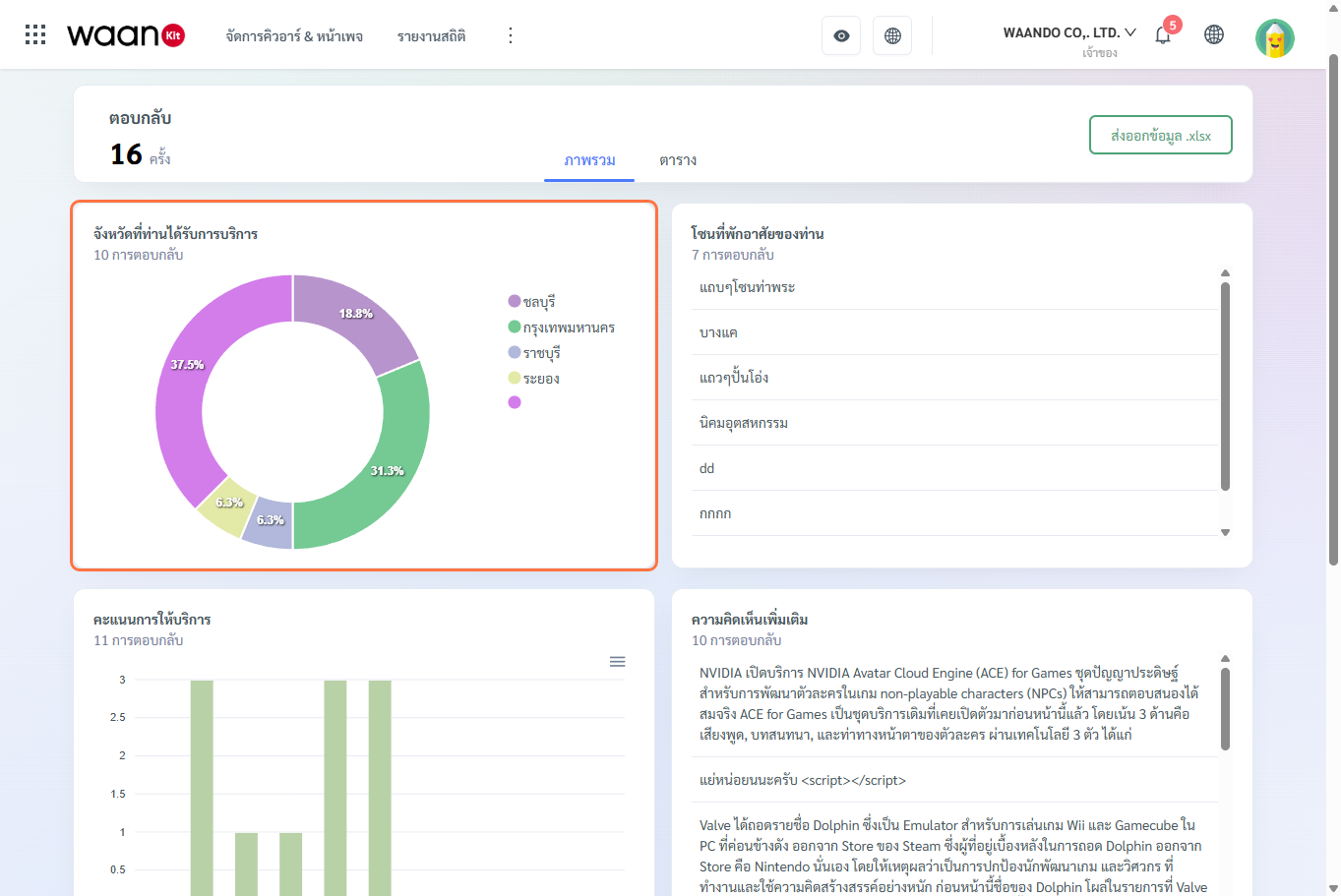
1. Accessing & Overview Summary
1.1 Accessing the Survey Results
- Navigate to "QR & Pages Management".
- Select the Smart Link containing your form or survey block.
- Click the "Survey Results" tab in the top navigation bar.
1.2 Total Response Counter
The top-left metric displays "Total Submissions", showing the net count of all completed forms submitted by respondents.
2. Visual Analytics in the "Overview" Tab
Click the "Overview" tab to inspect automatically aggregated chart visualizations tailored to each question type:
2.1 Donut / Pie Charts
- Applicable Question Blocks: Single Choice (Radio Button) and Dropdown Selection
- Visualization: Displays proportion percentages and response counts with clear color distinction.
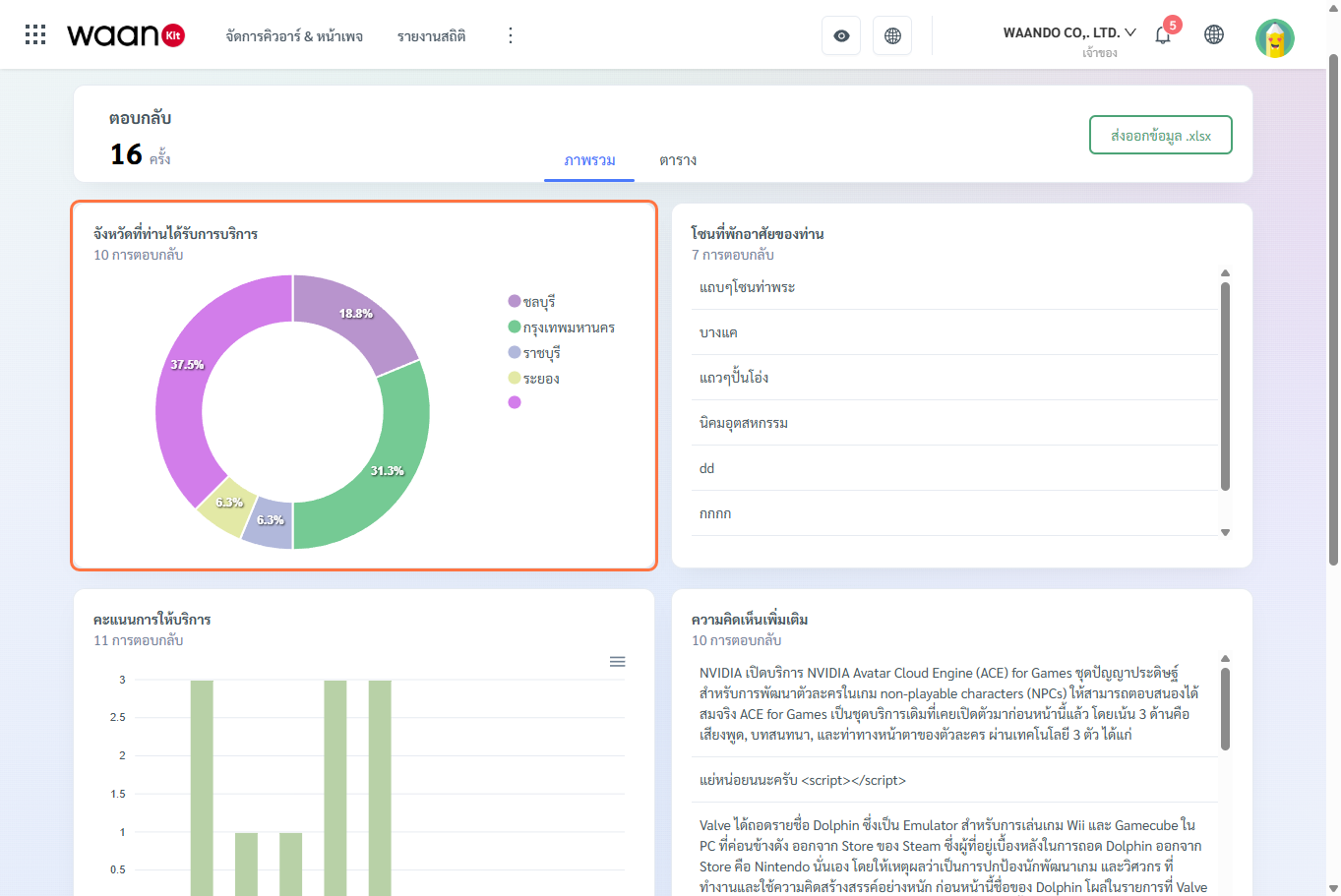
2.2 Horizontal Bar Charts
- Applicable Question Blocks: Multiple Choice (Checkbox) and Date Selection
- Visualization: Highlights the frequency distribution of selected options or service dates to benchmark customer preferences.
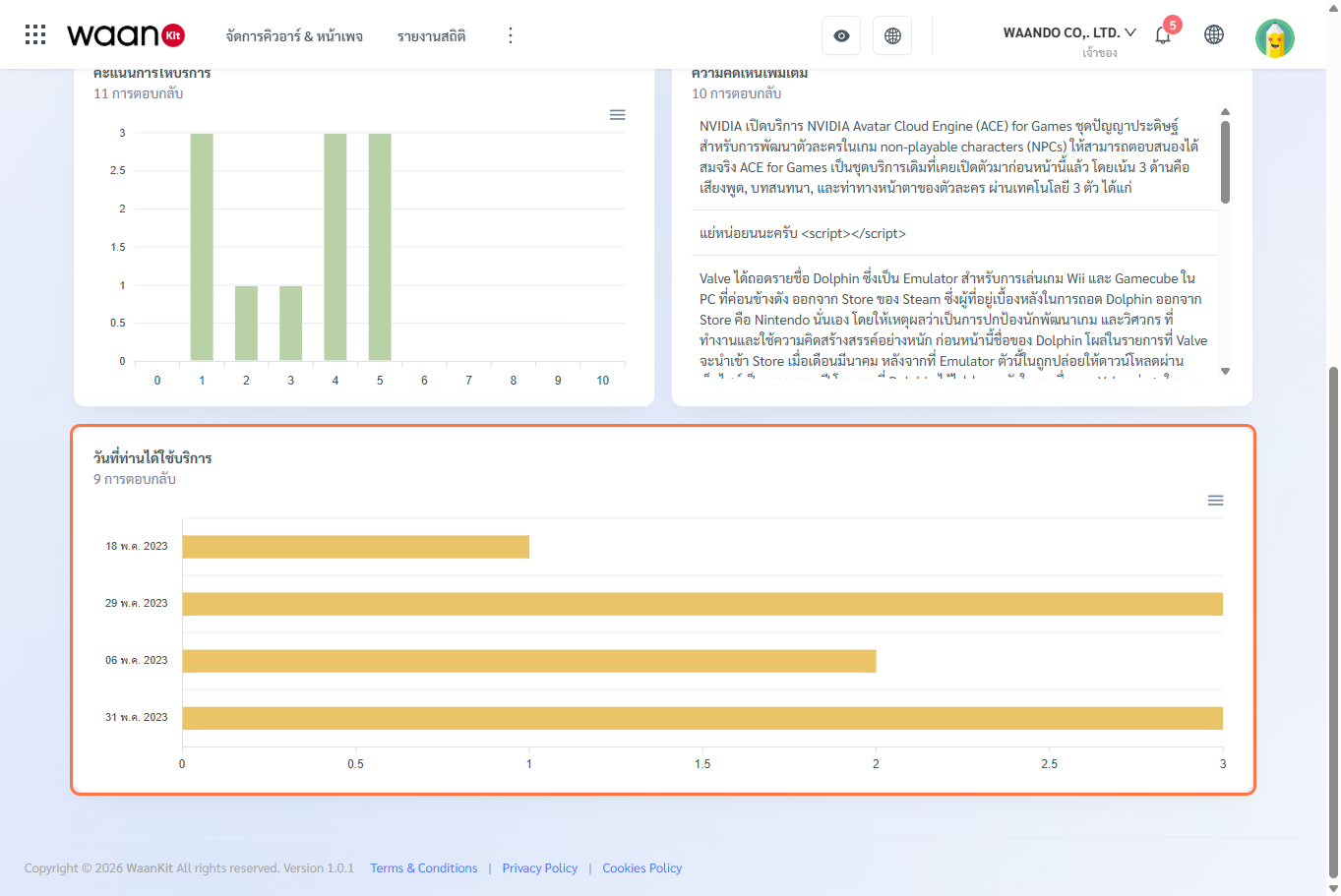
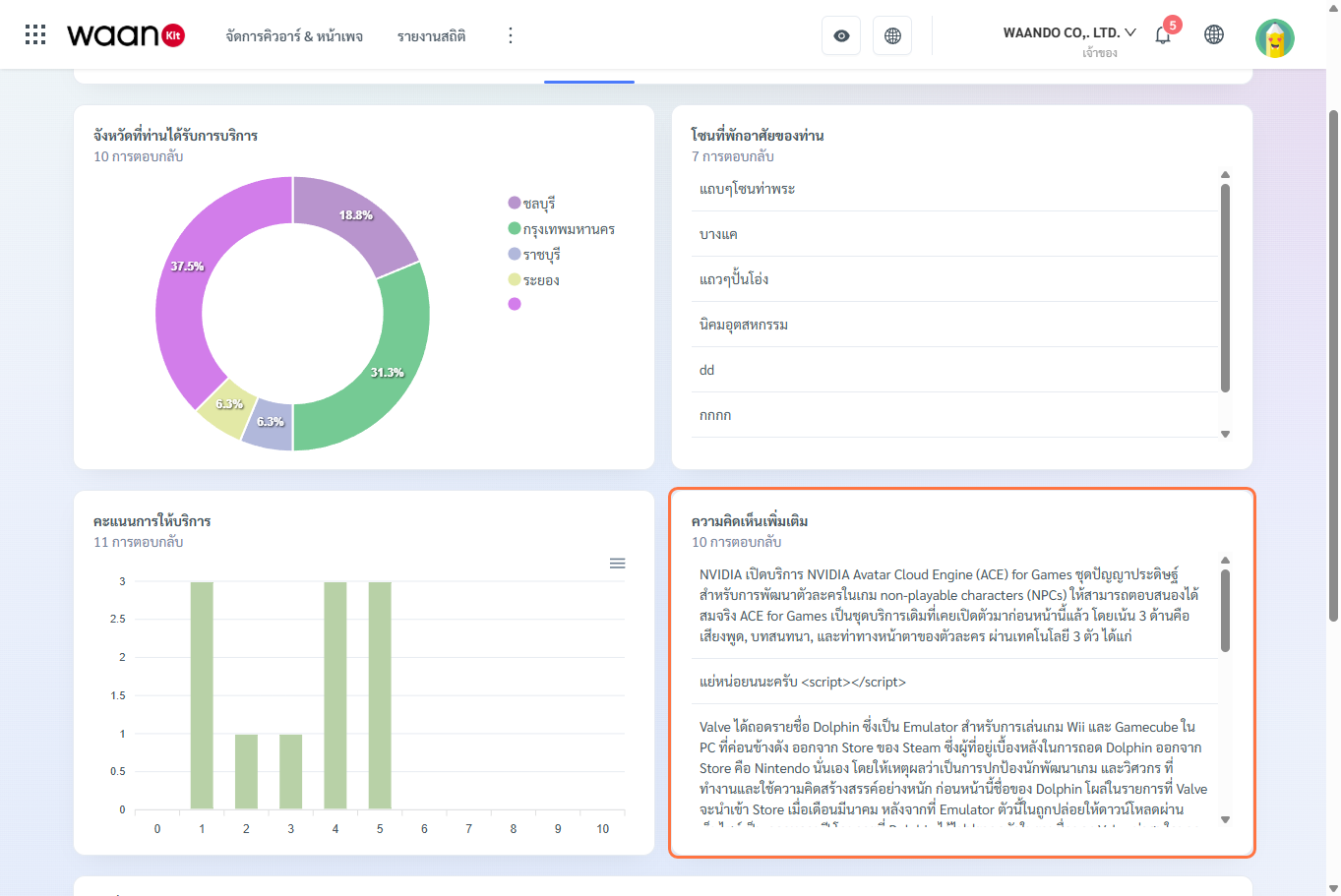
2.3 Vertical Bar Charts
- Applicable Question Blocks: Linear Scale (0-10) and Star Rating (1-5 Stars)
- Visualization: Reveals customer satisfaction scoring distributions to identify operational strengths and areas for improvement.
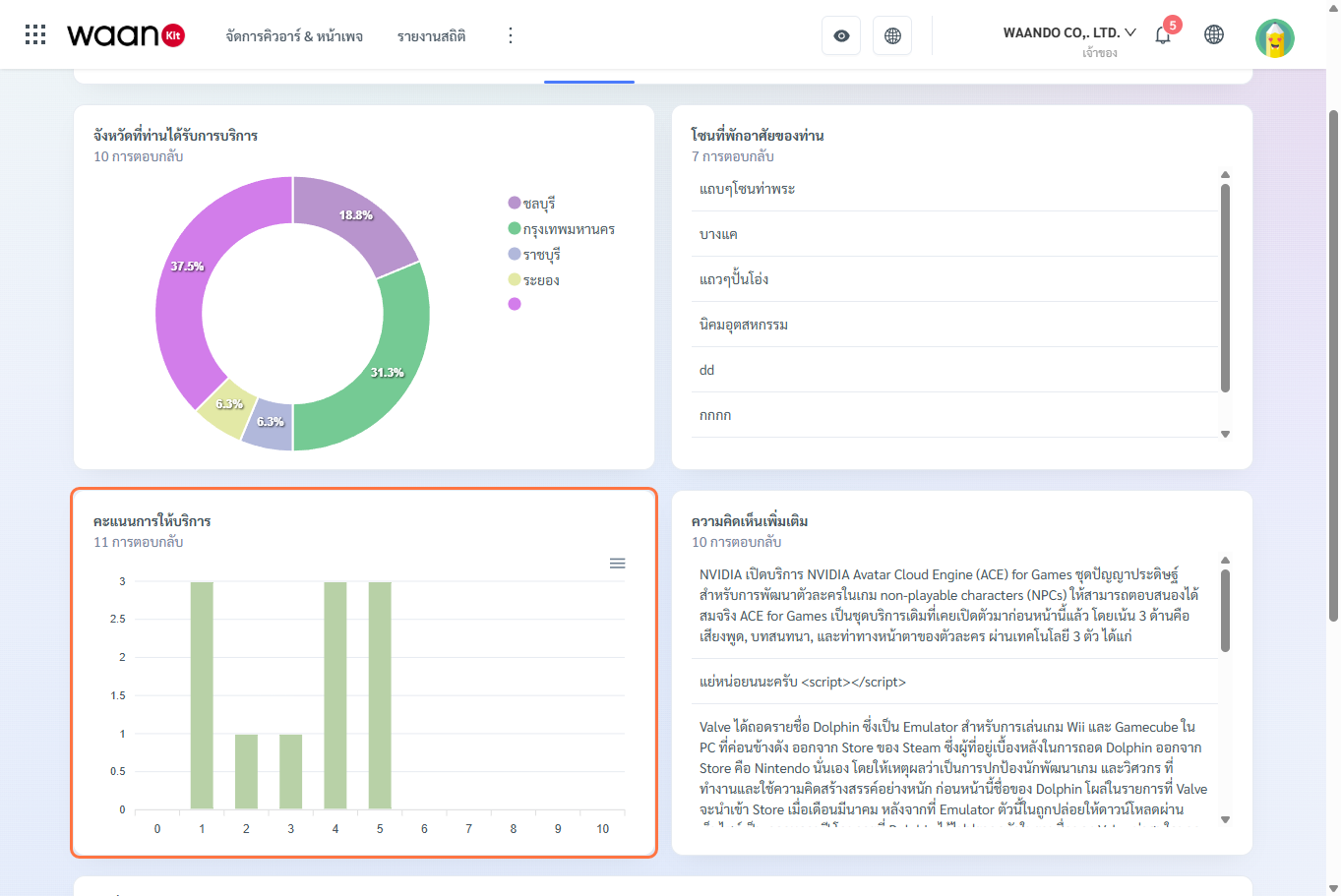
2.4 Text Responses & Feedback Cards
- Short Text: Displays concise feedback such as residential zones or customer identifiers.
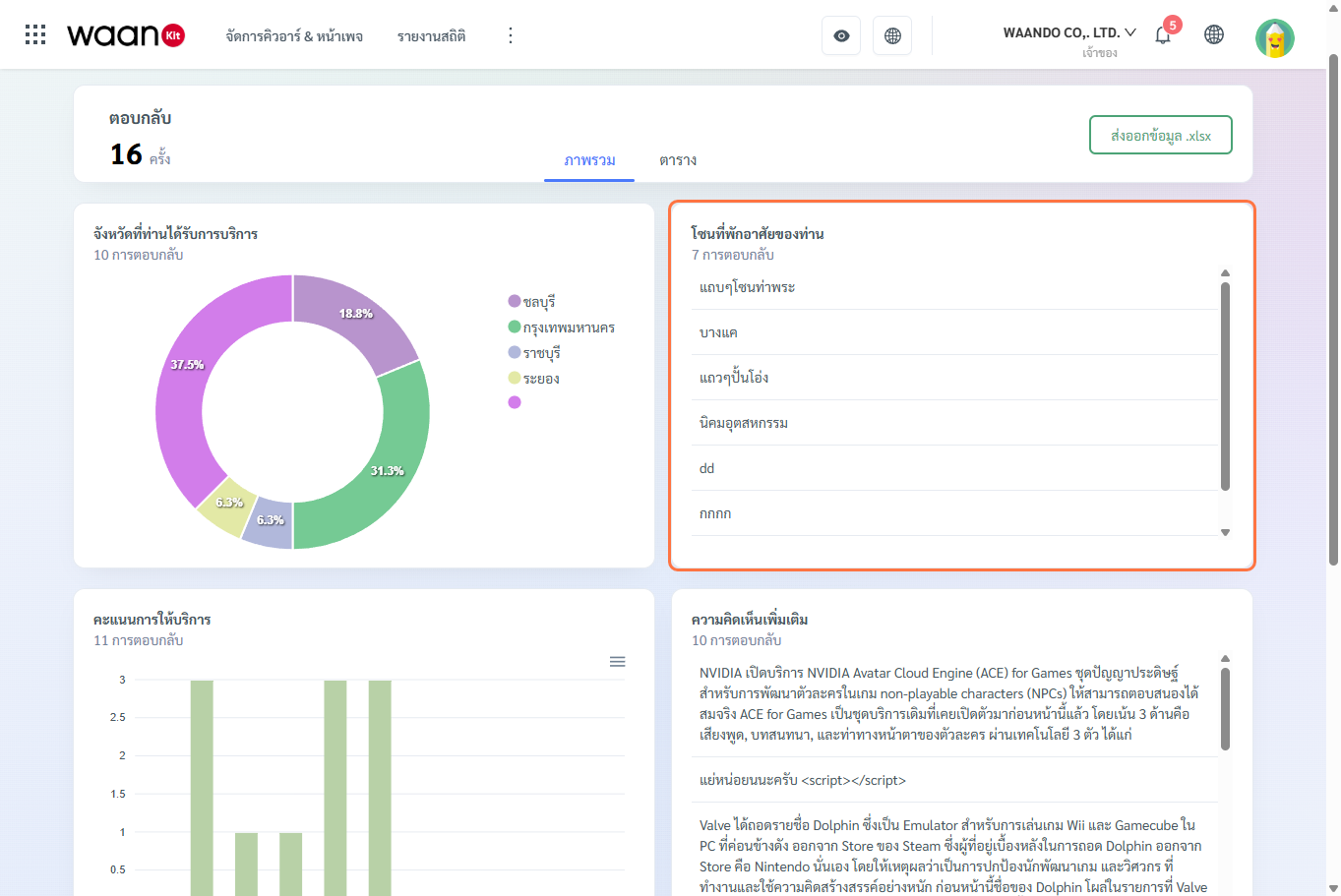
- Long Text: Presents detailed qualitative testimonials and suggestions.
3. Granular Inspection in the "Data Table" Tab
Click the "Data Table" tab to view individual responses in a searchable spreadsheet grid:
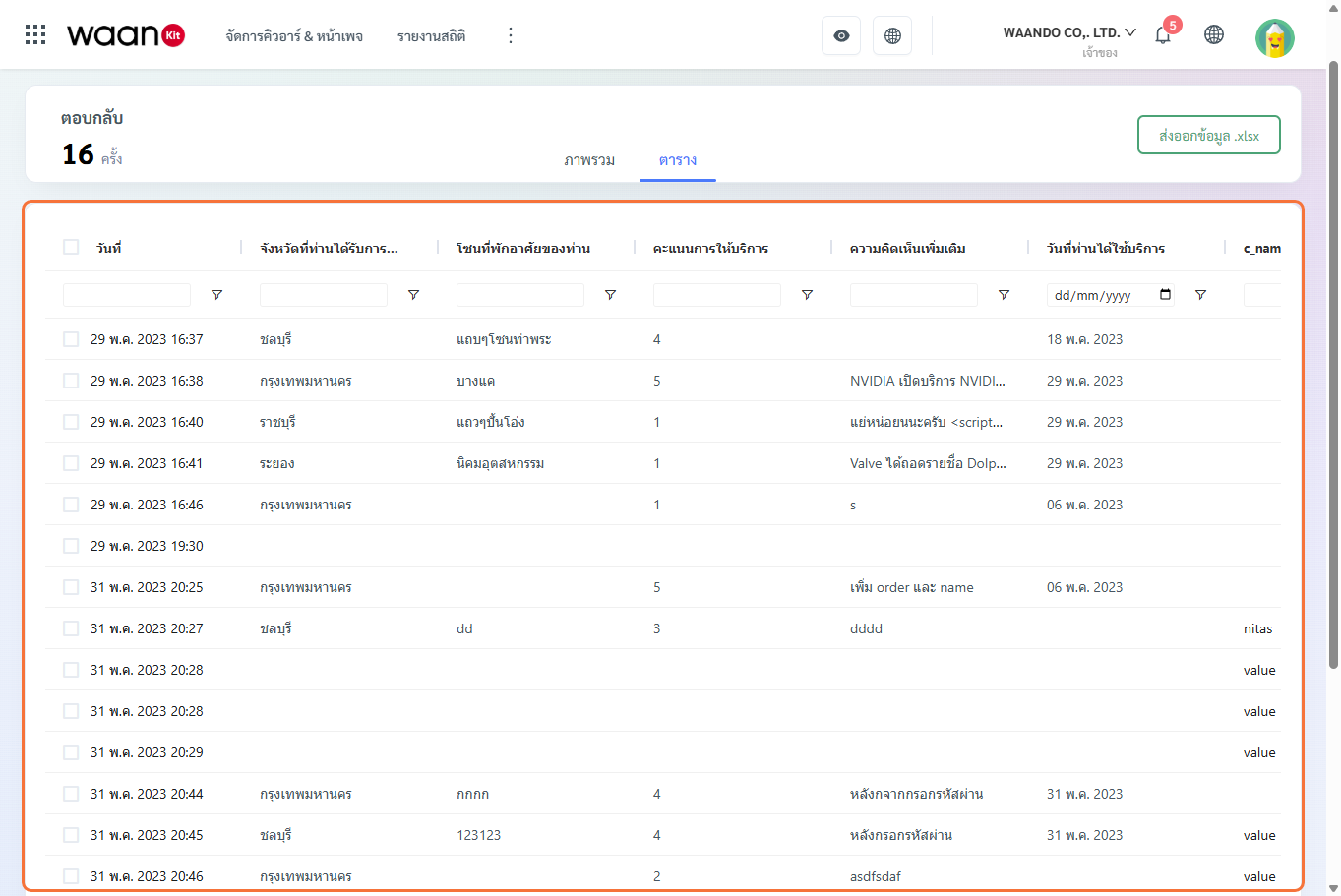
- Table Architecture:
- Submission Date & Time: Exact timestamp when each submission was submitted.
- Question Columns: Columns mapped to each form field in your page layout.
- Column Filters: Quick search and filtering across individual questions.
- Copying & Actioning: Click to copy customer emails, phone numbers, or notes for immediate CRM follow-ups.
4. Exporting to Microsoft Excel (.xlsx)
Click the green "Export Data .xlsx" button in the upper-right corner to export all response data into an Excel spreadsheet:
- 100% Data Fidelity: Includes all question fields, timestamps, and customer entries.
- Interoperability: Open directly in Excel, Google Sheets, or import into your internal enterprise database.
5. Instant Telegram Form Notifications
[!TIP] Real-Time Lead Alerts: Connecting Telegram Bot Notifications in the Advanced Link Settings sends instant push notifications to your team's Telegram group whenever a customer submits feedback, enabling instant customer service responses.