

Company & Workspace Management
WaanKit features a Multi-Workspace architecture, allowing a single user account to join, manage, and collaborate across multiple companies and storefronts simultaneously. All accessible workspaces are listed in the "Company" menu (/app/profile/company).
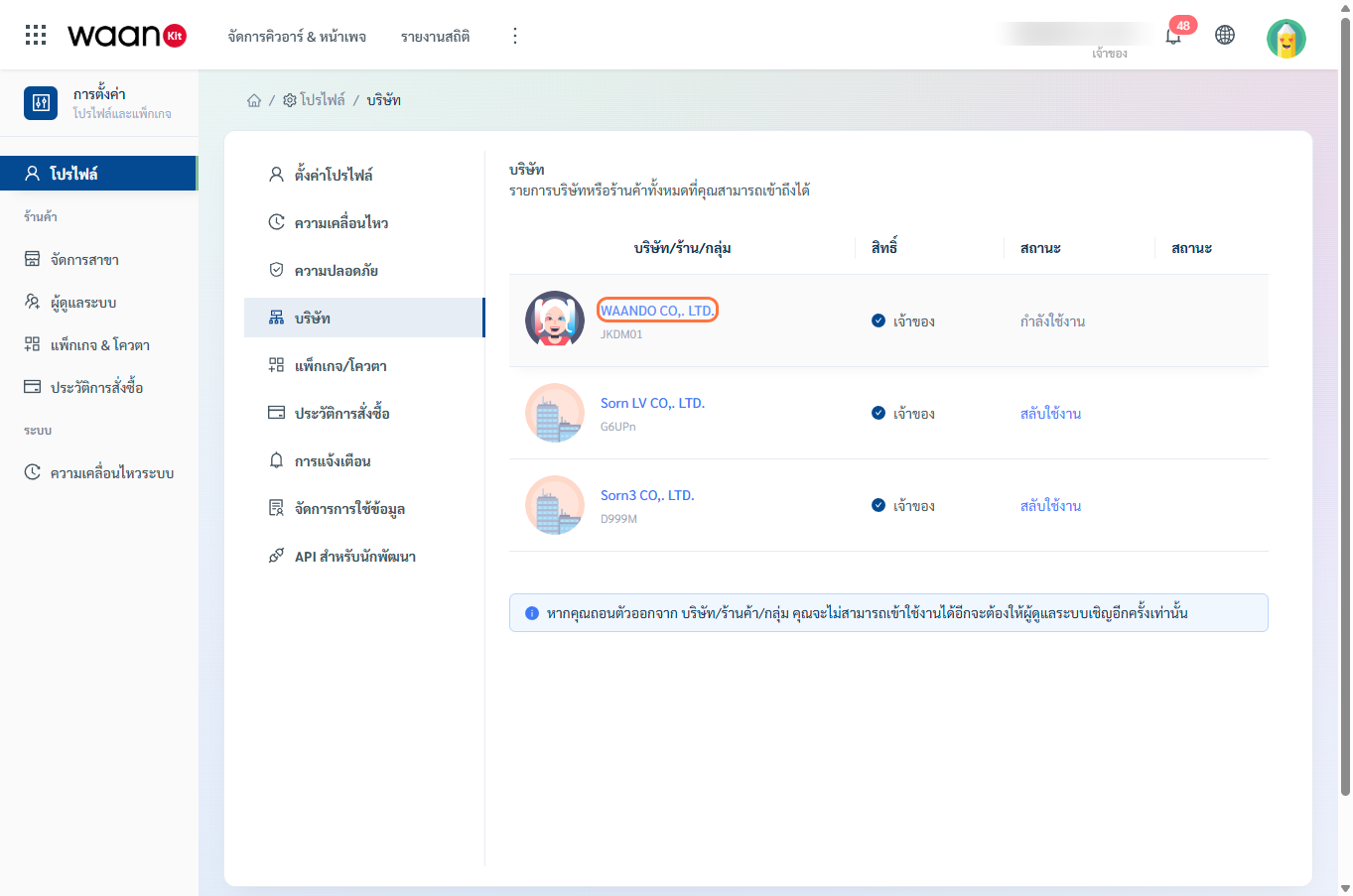
1. Workspace Directory & Role Privileges
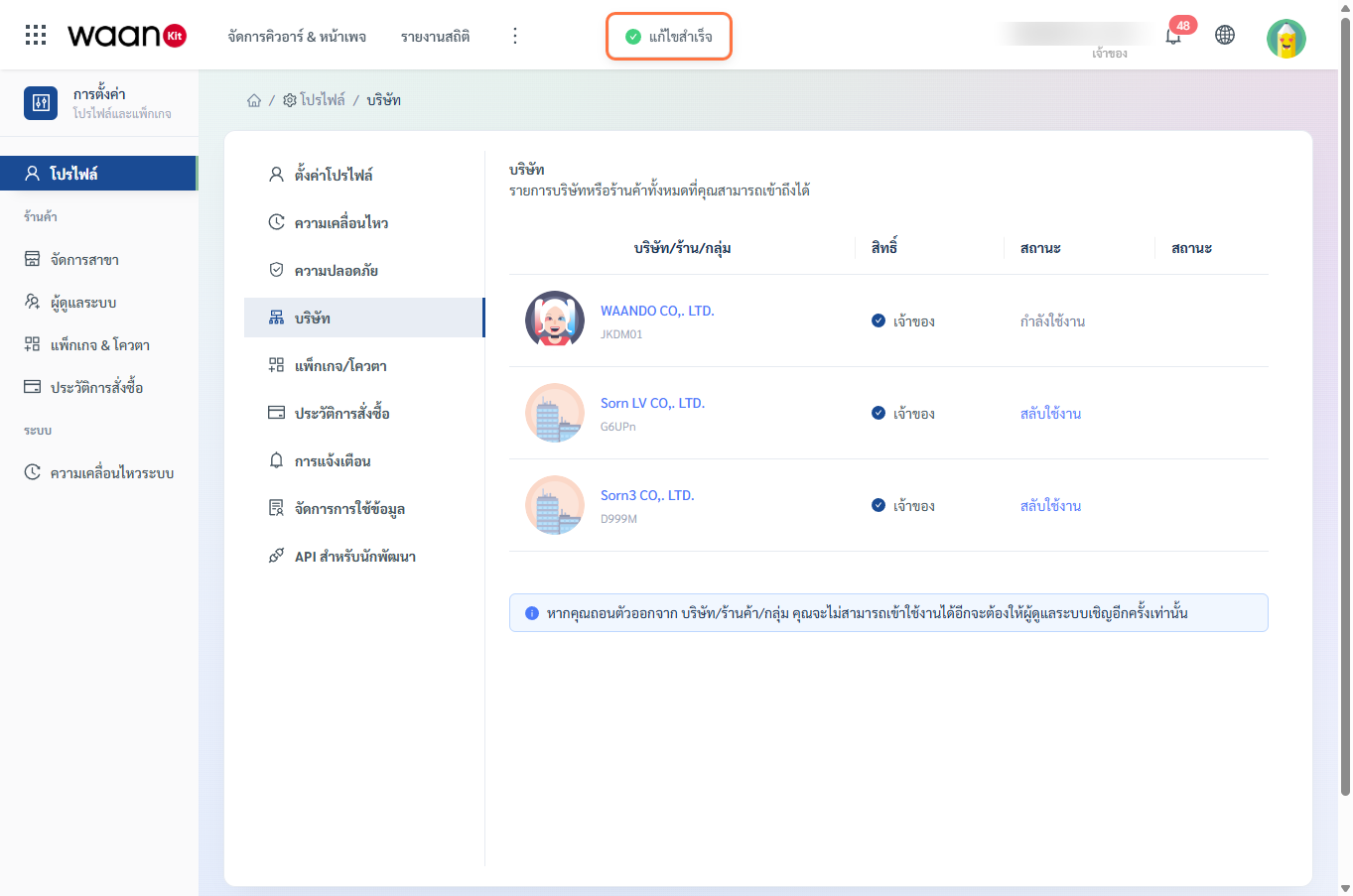
The company table outlines all organizations you currently have access to:
- Company / Shop / Group: Displays brand logo, company name, and Workspace Code (e.g.,
JKDM01). - Role: Your assigned permission level within that workspace (e.g., Owner, Manager).
- Status:
Active: The workspace currently loaded in your session.Switch: Button allowing you to transition into another workspace.
2. Switching Active Workspaces
You can switch between your associated workspaces using two convenient methods:
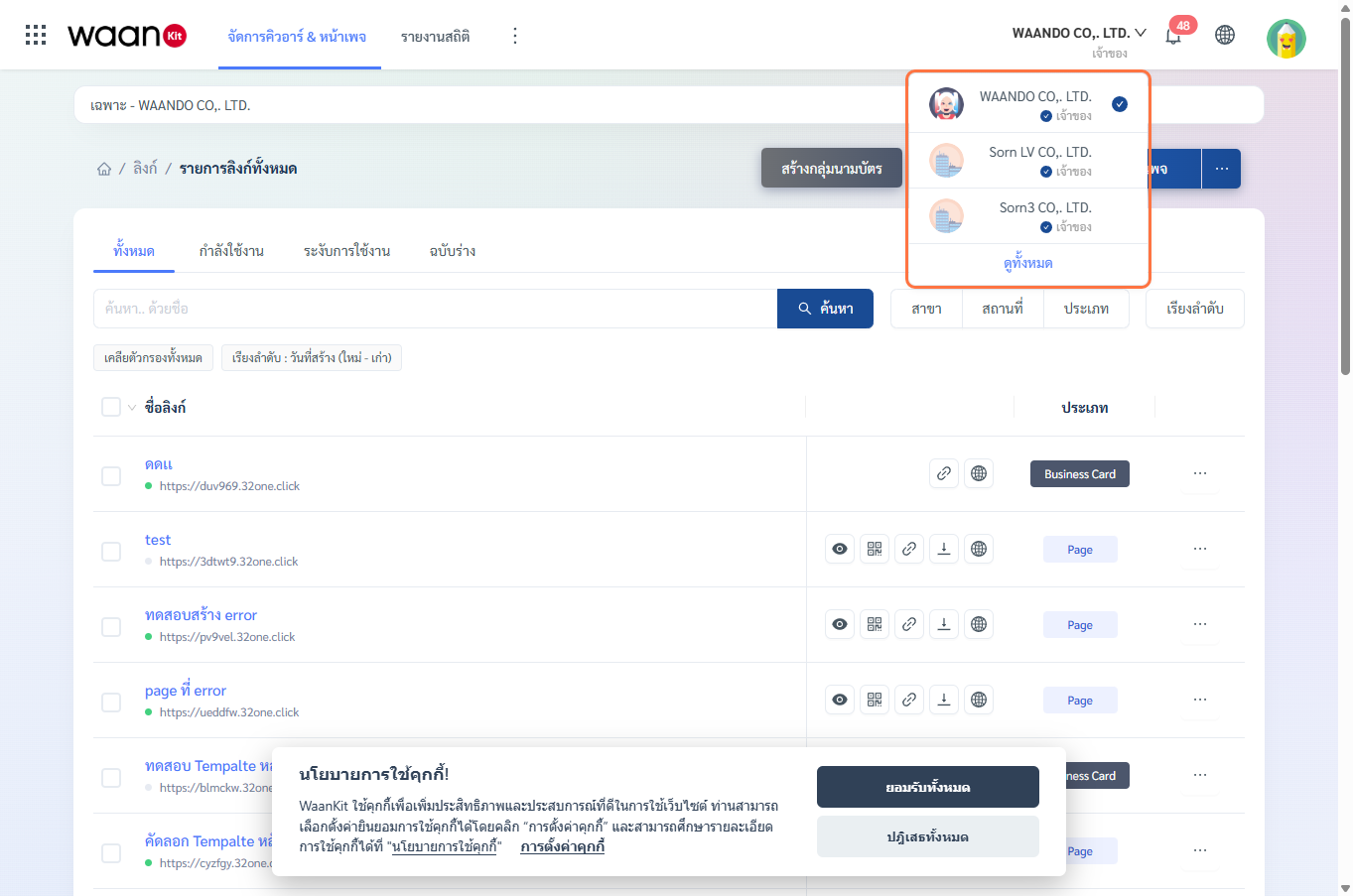
Method 1: Top-Right Header Quick Switcher
- Click on your Current Workspace Name located in the top-right header.
- The dropdown menu will display all workspaces where your account has membership.
- Click on the target company to switch contexts immediately.
Method 2: Via the Company Management Page
- Navigate to "Company" under profile settings.
- Locate the organization you wish to manage.
- Click the "Switch" button in the Status column.
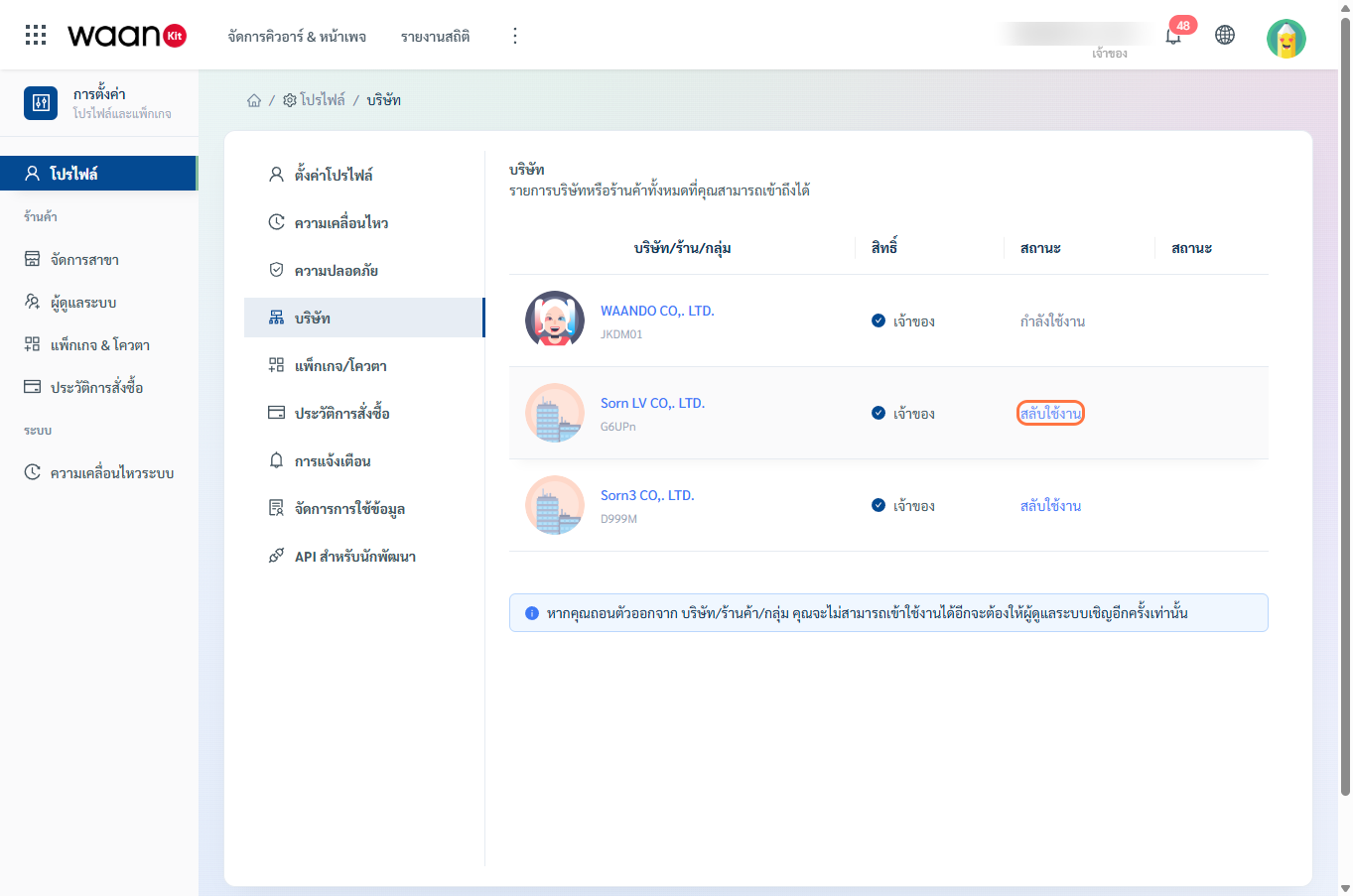
- WaanKit will instantly switch your active context (including QR codes, landing pages, analytics, and staff directories) to the selected organization.
3. Editing Company Name & Logo (Owner Role)
Workspace Owners can customize corporate details:
- Click on the company name in the directory table.
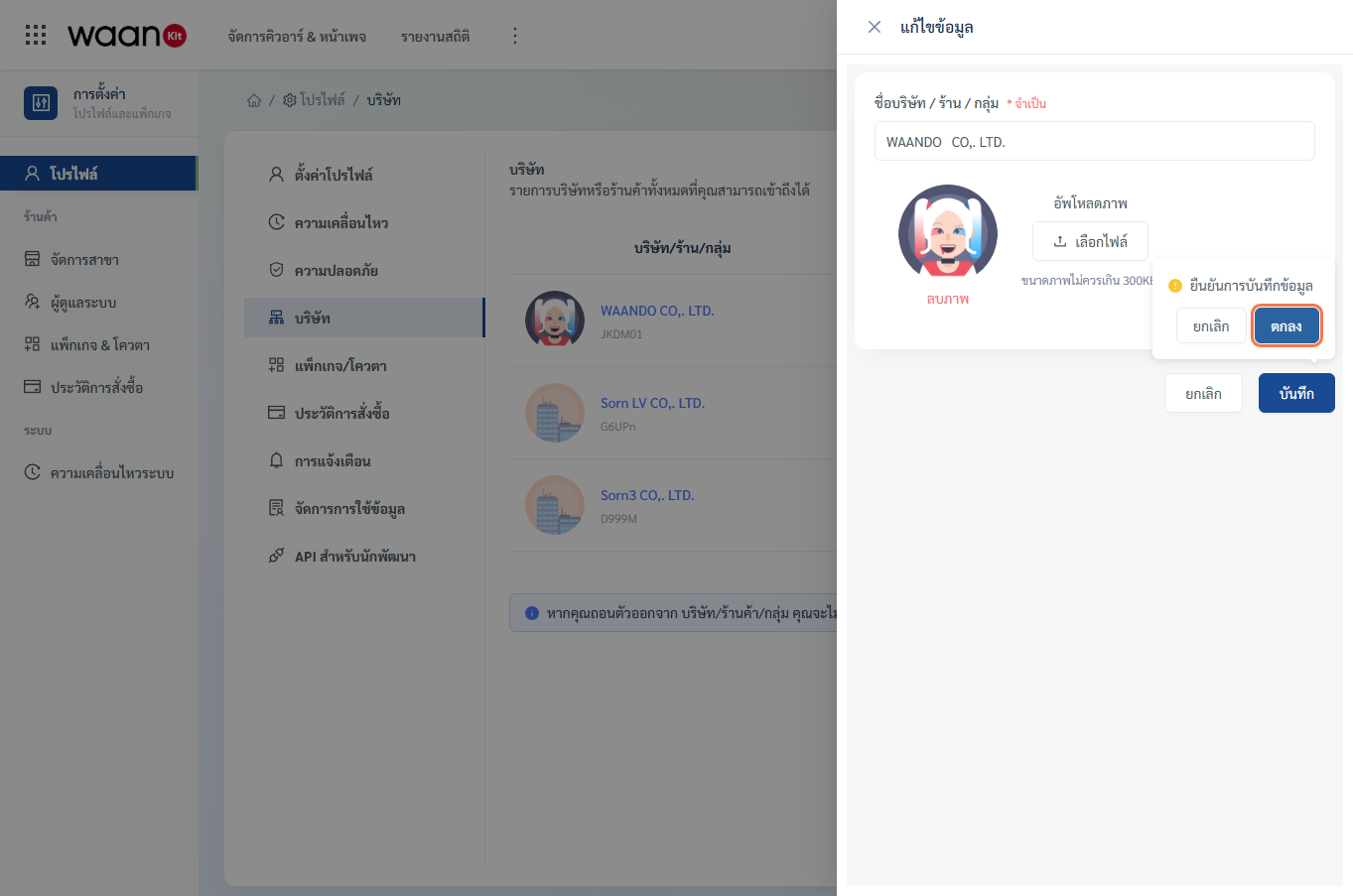
- The "Edit Information" side drawer will open.
- Modify details:
- Company / Shop Name: (Required) Corporate display name.
- Upload Logo: Click "Choose File" (maximum size 300KB) or click "Delete Image" to remove.
- Click "Save".
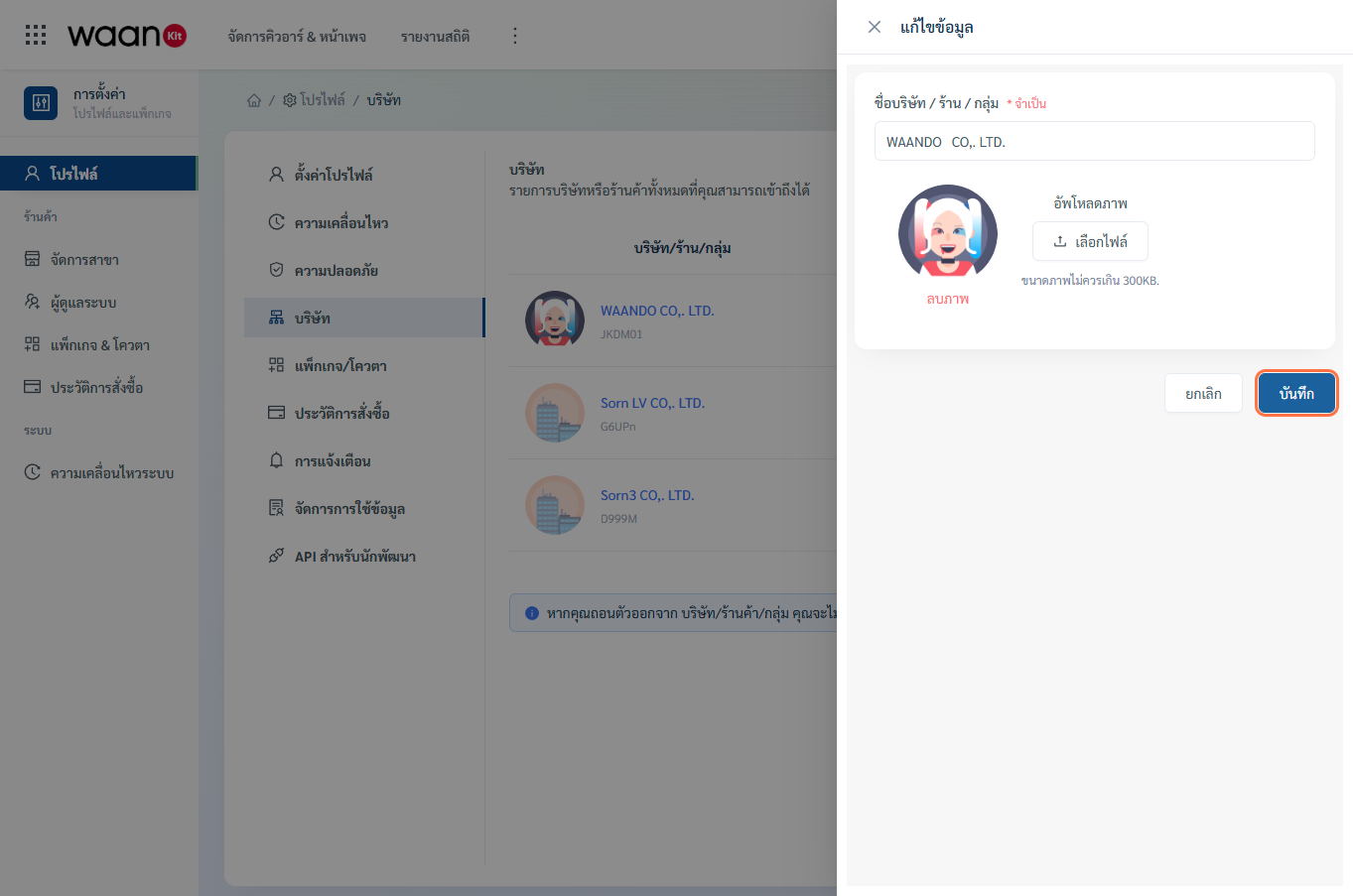
- A confirmation popconfirm will appear asking "Confirm Information Save"; click "OK".
- A green success toast notification "Update Successful" will confirm the changes.
[!WARNING] Leaving an Organization: If you leave a company or workspace, you will immediately lose access to all its assets, QR codes, and analytics until an Owner re-invites your account.