

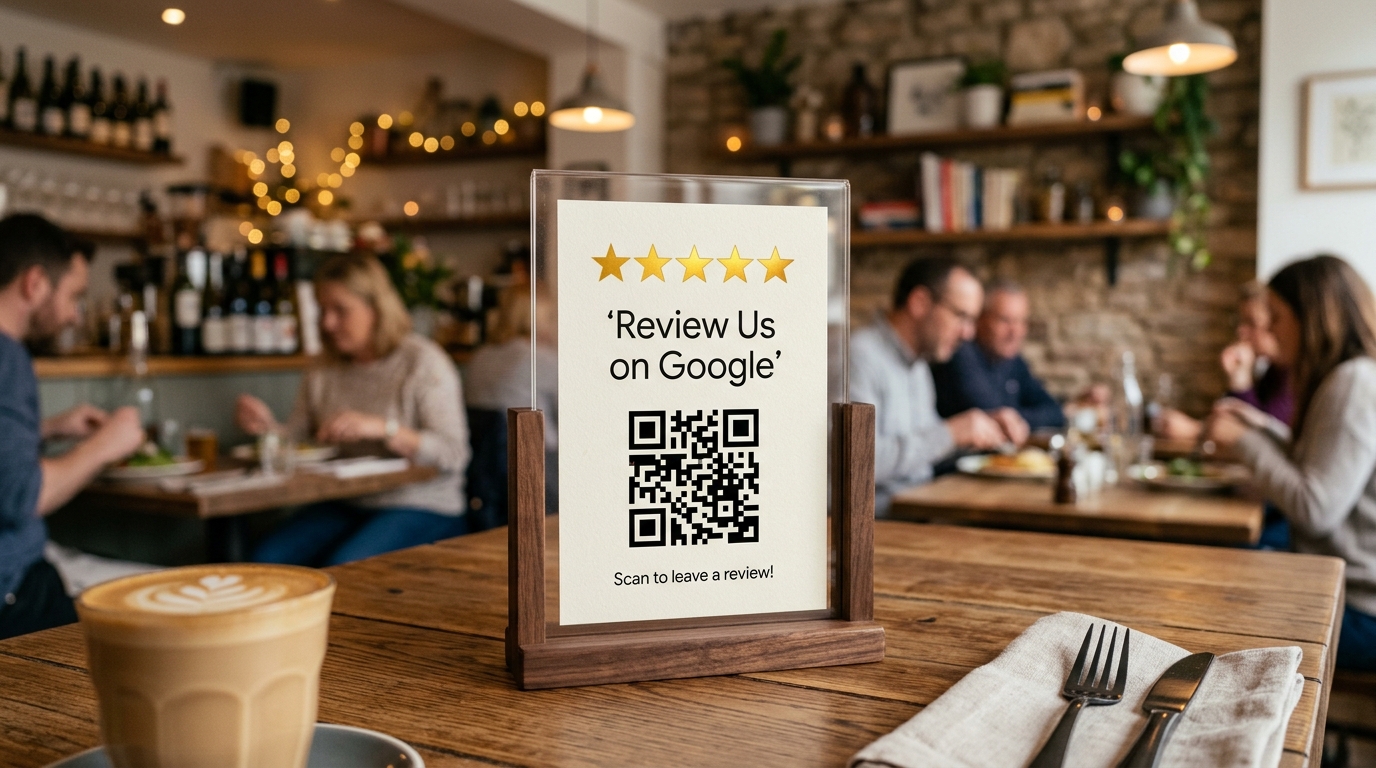
In an era where consumers routinely search for "restaurants near me", "spas near me", or browse local cafes and service providers on Google Maps, one of the most critical factors driving foot traffic and sales is your star rating and volume of Google Reviews.
Consumer research indicates that over 88% of shoppers trust online reviews as much as personal recommendations. Businesses maintaining a 4.5+ star rating with steady, genuine reviews consistently rank higher in Google Maps search results (Local SEO), outperforming competitors and earning instant customer trust.
However, many business owners face the same frustrating hurdle: "Customers love our service, but they rarely leave a review." The traditional process involves opening an app, typing the business name, navigating to the reviews tab, and finding the review button—too much friction for most busy patrons.
The solution is a Direct Review QR Code. When customers scan it with their phone camera, the review dialog with a 5-star rating prompt immediately pops up on their screen!
In this comprehensive guide, we will walk you through creating a professional Google Maps Review QR Code step-by-step using WaanKit.
The Secret: Google's Direct Review Link Format
Standard Google Maps business links lead visitors to the general business overview tab. However, Google provides a dedicated URL structure specifically engineered to trigger the review modal directly:
https://search.google.com/local/writereview?placeid=[PLACE_ID]
When opened on any mobile or desktop browser, this URL bypasses navigation menus and immediately opens the review submission box with 5 stars ready to be selected. All you need to do is replace [PLACE_ID] with your establishment's unique Place ID.
Steps 1 & 2: Find Your Business's Place ID
A Place ID is an official, unique identifier assigned by Google Maps to individual locations. You can look up your store's Place ID for free using Google's official developer tool:
- Visit the Google Maps Platform - Place ID Finder.
- In the map search bar ("Search for a location or business"), type your business name and branch address.
- Once the red location marker drops onto your store, click on the marker or the informational popup.
- Locate the Place ID field (a unique string beginning with
ChIJ...) and click to copy the code.
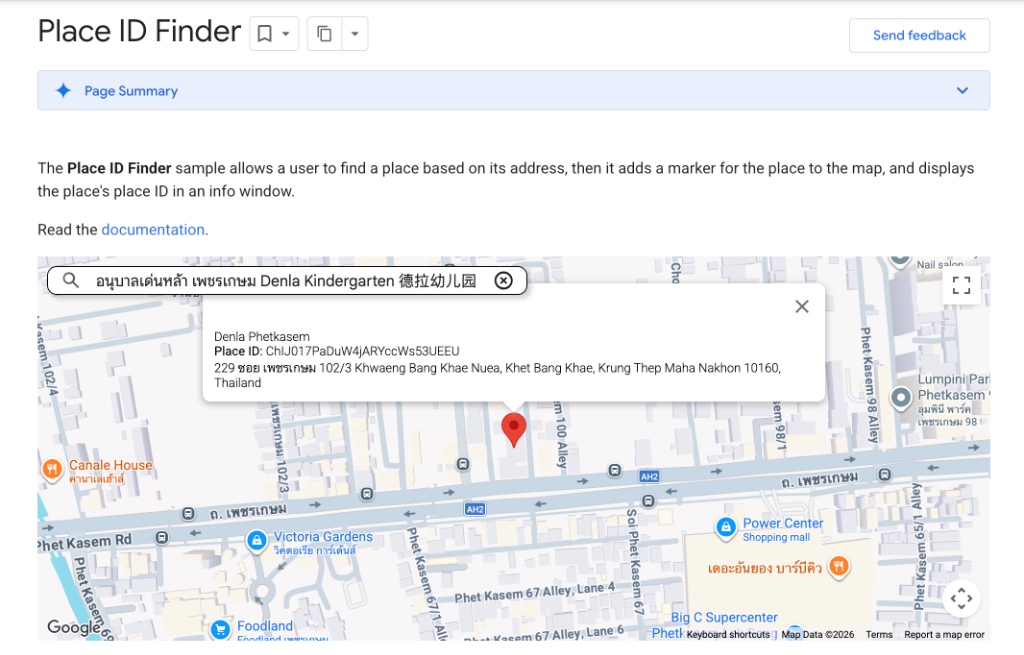
Pro Tip: Double-check that the address and branch location match your physical shop accurately before copying the code to ensure reviews are credited to the right listing.
Step 3: Construct the Complete Direct Review URL
Append your copied Place ID to the base URL without any spaces:
- Base URL Structure:
https://search.google.com/local/writereview?placeid= - Example Place ID:
ChIJ017PaDuW4jARYccWs53UEEU - Complete URL:
https://search.google.com/local/writereview?placeid=ChIJ017PaDuW4jARYccWs53UEEU
Verification: Open this link in a new incognito or private browser window. If configured correctly, the Google review popup for your venue will launch automatically.
Step 4: Generate a Branded QR Code with WaanKit
Now that you have your direct review URL, the next step is converting it into an eye-catching, high-resolution QR code.
While basic QR generators exist, creating your code with WaanKit Dynamic QR Code delivers essential commercial advantages:
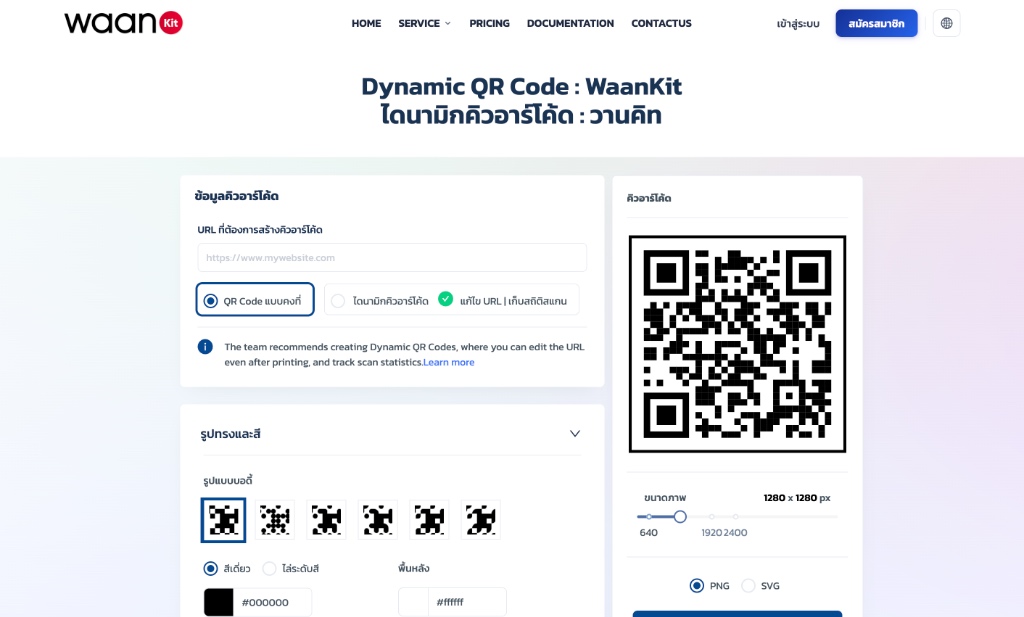
Why Choose WaanKit for Your Business Review QR Code?
- Scan Analytics Dashboard: Track scan counts in real time. Know exactly how many patrons scan your displays each day or week to gauge staff performance and seasonal campaigns.
- Edit Destination Anytime (Dynamic QR): If you ever relocate, update your Google listing, or want to redirect scans temporarily to an anniversary survey or promotion, you can change the target URL instantly without reprinting signs.
- Custom Visual Branding: Customize colors to match your brand identity, embed the Google Review logo or your shop emblem in the center, and select a "Scan to Review" Call to Action (CTA) frame.
- Print-Ready Resolution: Export crisp, high-resolution graphics (up to 4K / SVG format) that look sharp on acrylic table stands, wooden blocks, and storefront decals.
How to Create the QR Code on WaanKit:
- Access WaanKit Console or the Dynamic QR Code Creation Page.
- Select "Create Link" or "Dynamic QR Code".
- Paste your complete Google review URL into the Destination URL input field.
- Personalize your QR code:
- Select a color palette aligned with your store's decor.
- Upload your brand logo or choose the 5-star review badge.
- Add a Call-to-Action frame such as "Scan to Review" to maximize engagement.
- Save and download your high-resolution image file.
Need a Quick Static QR Code? If you need an instant code without creating an account, you can also use the free WaanKit Static QR Code Tool.
Step 5: 4 Creative Ways to Display Your QR Code
A great QR code only works when placed where customers naturally look. Here are four high-impact placement strategies:
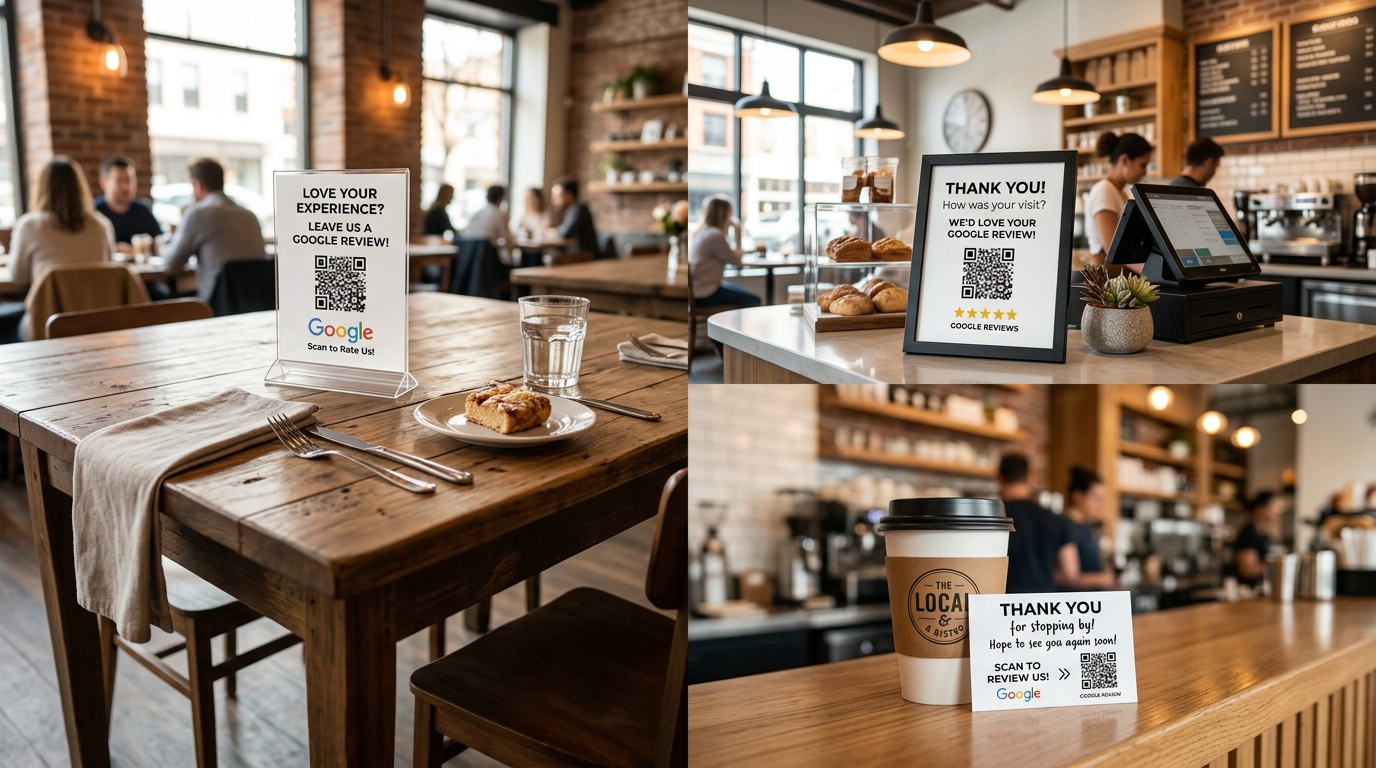
- Acrylic Table Tents & Wooden Stands: In restaurants, cafes, and waiting lounges, place compact stands right on dining and service tables. Customers waiting for their order or relaxing post-meal naturally reach for their smartphones.
- Point-of-Sale (POS) & Cashier Counter: The checkout counter is the final touchpoint before customers leave. A polite verbal prompt from your cashier paired with a clear counter sign turns goodwill into 5-star ratings.
- Thank-You Cards in Takeaway & Delivery Orders: Insert a small branded card thanking the customer for their order with a QR code asking for feedback on Google Maps.
- Receipt Footers: Print a small QR code with a message like "How was your visit? Scan to share your thoughts" at the bottom of the customer receipt.
3 Psychological Secrets to Encourage 5-Star Reviews
Eliminating technical friction is step one. Step two is timing and human communication:
- 1. Tap into the Peak-End Rule: Ask for the review immediately after a memorable highlight—such as when a customer praises a delicious dish or finishes a relaxing spa session.
- 2. Offer a Win-Win Incentive: Consider offering a small perk where permitted, such as "Scan to review and enjoy a complimentary dessert on your next visit" or a 5% discount coupon.
- 3. Train Your Team to Ask with Warmth: A friendly, personal request makes a world of difference: "If you enjoyed your experience today, scanning the code on your table would mean the world to our team!"
Conclusion: Turn Every Great Experience into Google Maps Growth
Investing a few minutes to create a Google Maps Review QR Code delivers compounding dividends for your business. It elevates your local search rankings, boosts social proof, and turns casual passersby into loyal customers.
Ready to take your business to the next level? Create your customized, trackable review QR code today with WaanKit Dynamic QR Code!